
CAS Targeted Warning Messages
Short warnings displayed after a user has logged into CAS
A CAS targeted warning message is a short warning or informational message that is displayed to some users after they have logged into CAS but before they are redirected to their service destination (Lionmail, PAC, Rascal, etc.)
Which users? The warning message is only displayed to users who have an informational tag known as a warning affiliation in their LDAP directory record. Each warning affiliation is associated with a message that includes a short description of the warning and a link the user can follow for more information. The user viewing the message can follow the link or dismiss the warning view and continue on to their original service destination. If the user has more than one warning affiliation, the warning view will display multiple warning messages in priority order, up to a maximum of three.
Does this apply to all logins? A warning message is meant to be system-wide and appears on all CAS logins for users with the warning affiliation, with the following exceptions:
- SABA (available thru Human Resources Training and Courses)
- Stridepoint (formerly Rocket-Ready)
- Manage My UNI
When should warning messages be used? CAS warning messages are intended for important system-level events, for example, alerting a user to a condition that could result in a loss of access to Columbia online systems, like failure to take mandated NY Anti-Sexual Harassment training. Warning messages get the user's attention but can be bothersome because they interrupt the flow of activity. They are meant to be used sparingly.
How do I create a warning message? See How to Publish a new Message.
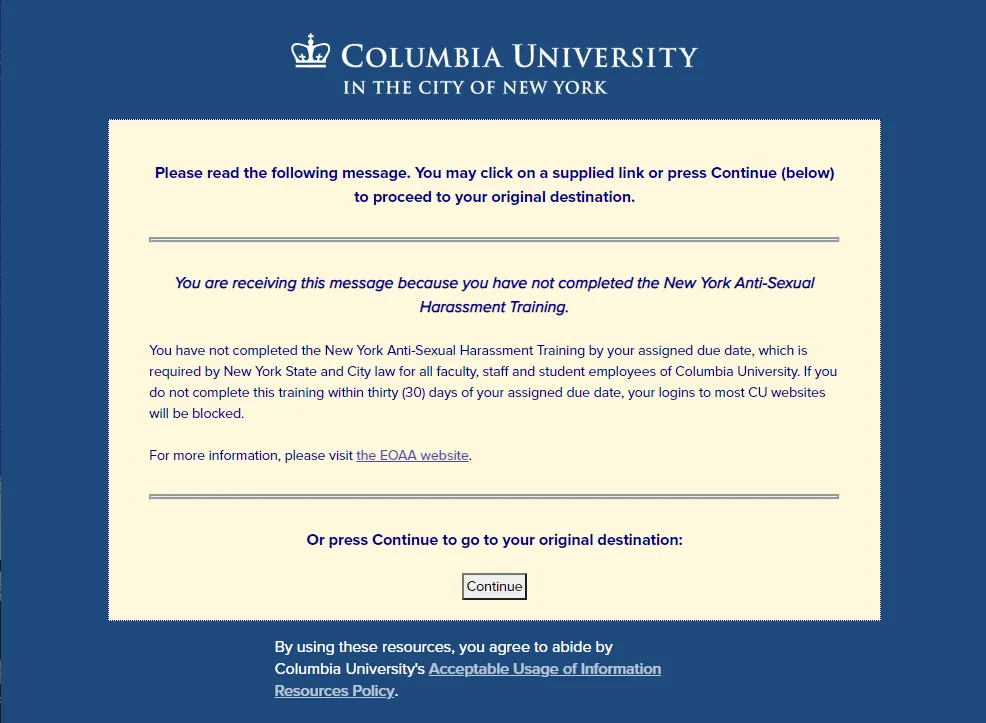
This is the warning view with a single warning message:
This is the warning view with 2 messages:
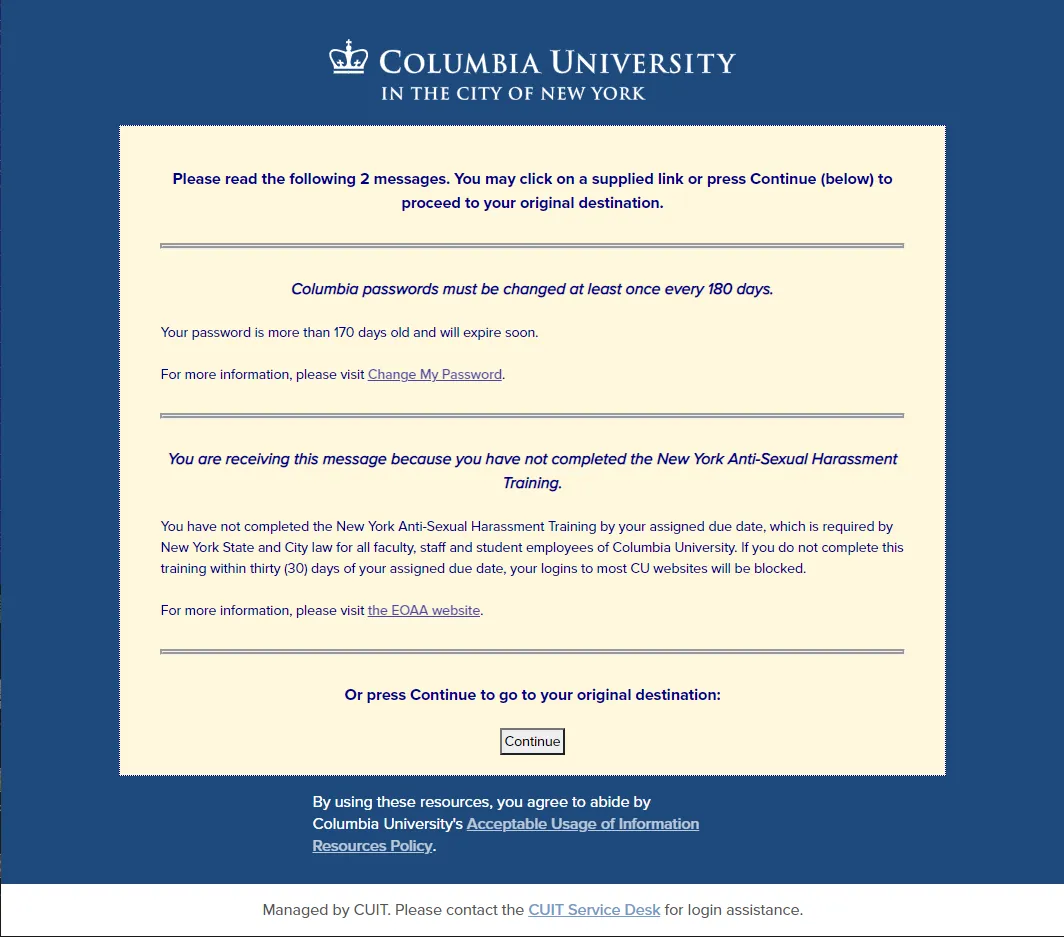
Up to 3 messages may be displayed, in priority order (see below.) Users with more than 3 will only see the 3 highest priority messages.
A warning affiliation is an informational tag in CUIT's LDAP directory. It is assigned to a user when the user is added to a Grouper group that has been set up as the source for that affiliation. (Visit the Columbia Grouper documentation for more information about Grouper at CUIT. For information about LDAP, see here.) Grouper groups can contain other pre-existing Grouper groups including "reference" groups. They can also be ad hoc groups created just for a particular use, in this case identifying accounts that should receive a specific warning message. When the user is removed from the group, the affiliation for the user is removed and the message will no longer appear.
1. Gather the required information:
2. Create a ServiceNow request with the required information and assign it to the Identity and Access Management Group (IAM).
3. Request the creation of a Grouper group whose members will receive the warning affiliation. (See the Grouper documentation for information on creating and managing Grouper groups.) After the group has been created, check to make sure that you or your designee is able to add and remove members from the group. Important: ensure that you have a process (manual or automated) to remove members from the group when they no longer should see the warning. IAM can assist with automating this process.
4. IAM will assign the following message values:
5. Ensure the message is approved. Written (email) approval is required from the Columbia University CISO (Medha Bhalodkar) or the Senior Director of Identity and Access Management (Chris Dowden).
6. IAM will set up a preview on the CAS test system and send you a test link. Approve or edit the message as necessary.
7. On the message start date, users with the warning affiliation will see your message when they log in.