
Research Data Transfer — Globus
Secure, efficient and reliable file transfer service for large data transfers within Columbia and to external collaborators.
Globus is a high-performance data-transfer and sharing platform that allows you to move large and complex datasets directly between any two applications, systems, or local machines, eliminating the need for downloading and then uploading the data. You can use Globus for…
- Data transfers between HPC clusters or your servers.
- Data transfers between a server and your laptop.
- Transferring / sharing data with researchers and collaborators at other institutions.
- Data transfers between supported cloud storage applications to/from any of the above.
- Automated data transfers between any of the above (scheduled and/or recurring transfers).
Transfers happen unattended (with a confirmation email when complete), data verification is on by default, and encryption is enforced.

Announcements
- RCS now offers a dedicated Globus managed endpoint for users who need collections to transfer their data, but do not have the IT resources or expertise to set up an endpoint to put the collection on themselves. This is a good solution for moving data from SRCPAC HPC cluster to Box, AWS S3, Google Drive, etc. If you need a collection, email [email protected] to begin the process (a ServiceNow ticket will be automatically created in your name).
-
A Globus request form is now available for CUIMC users who need a Globus Collection (or for any Columbia users transferring sensitive data).
Globus terminology
Globus uses specific terms. High-level definitions for quick reference; see Handling Collections vs Endpoints if more detail is needed.
Why use Globus to transfer and share data?
- Fast: If you transfer large files or large collections of files (TBs, or even PBs) that take 15+ minutes, then Globus is highly recommended to expedite your data transfers. Globus is an efficient alternative to scp, sftp, and rsync over ssh utilities, which are best-suited for small datasets.
- Reliable: If your data transfers may be interrupted due to an unreliable connection or exceeded disk quota, Globus is a great solution since it automatically resumes your data transfer in the case of temporary disconnections.
- Secure: Globus integrates with the grid security infrastructure and adds encryption to both the data and control channels for moving data between two endpoints (e.g. your computer, HPC clusters, Google Drive, OneDrive, etc.). As a result, the data moves directly between the source and destination endpoints and cannot be accessed or stored by Globus, only by the GridFTP servers running on your managed endpoints.
NOTE: At this time, all CUIMC users with sensitive data must request a collection via CUIMC's Globus Request form, which is certified for sensitive data (RHI, PII, HIPAA-protected data). Morningside users with sensitive data can set up their own "high assurance" endpoint following a risk assessment from CUIT Risk Management team; please email [email protected] for guidance.
- Convenient: With Columbia's Globus Connect and Open Access subscriptions, you can create a data-sharing endpoint on almost any device: your laptop or personal desktop, campus HPC clusters, lab servers, Google Drive, Amazon S3 bucket, Box, OneDrive, and more.
- Collaborative: You can securely transfer data both in and outside of Columbia using Globus. The basic Globus transfer service is free for all non-profit organizations, so transferring data to external collaborators outside of Columbia is likely free for them as well!

How do I get started with Globus?
If you are new to Globus, follow our Globus account decision tree to be directed to the appropriate Globus account request form.
If you already have a Globus account from another organization
- Log into Globus
- Select Link to an existing account. The Identity Linking Tutorial explains in detail how Identity Linking works.
- Request access to the Columbia University Standard subscription.
- While you wait to be approved, download Globus Connect Personal to set up a data transfer endpoint on your own Mac, Windows or Linux system.
- Optional: Follow Globus' tutorial to practice sharing data.
- Optional: If you plan to share data from your computer directly to another Globus user, you must enable sharing in your Globus Connect Personal app. Click on the Globus app icon (in upper-right toolbar on Macs, lower-right toolbar in Windows), then select Preferences, choose the Access section, and finally check the Sharable box.
1. Log into Globus with your @columbia.edu identity.
2. Open Globus Connect Personal on your computer (see above to install GCP).
3. Navigate to the File Manager in Globus from the left-hand navigation panel.
4. Enter the name of your Globus Connect Personal collection at the top of the left panel (or vice versa). Tip: the name of your collection can also be found under Bookmarks --> Your Collections.
5. Enter "RCS-LionMail-Drive" at the top of the right panel (or vice versa).

6. On the left, select the file(s) you would like to transfer.
7. On the right, select the destination where you would like the files to be transferred to (MyDrive is the top-level location for LionMail Drive). If you don't select a specific folder, the file(s) will be dropped in the generic top-level Drive location.
8. Click the Start button at the top on the side you will be sending the data from. You will see a pop-up indicating that the transfer is in progress.
9. You will receive an automated email from Globus Notification <[email protected]> when the transfer is complete. You can also monitor progress using the Activity page in Globus (accessible from the left-hand navigation panel).

1. Log into Globus with your @columbia.edu identity.
2. Open Globus Connect Personal on your computer (see above to install GCP).
3. Navigate to the File Manager in Globus from the left-hand navigation panel.
4. Enter the name of your Globus Connect Personal collection at the top of the left panel (or vice versa). Tip: the name of your collection can also be found under Bookmarks --> Your Collections.
5. Search for the name of the CUIT HPC cluster at the top of the right panel (or vice versa). All users that have an HPC account will have automatic access to their cluster's collection.
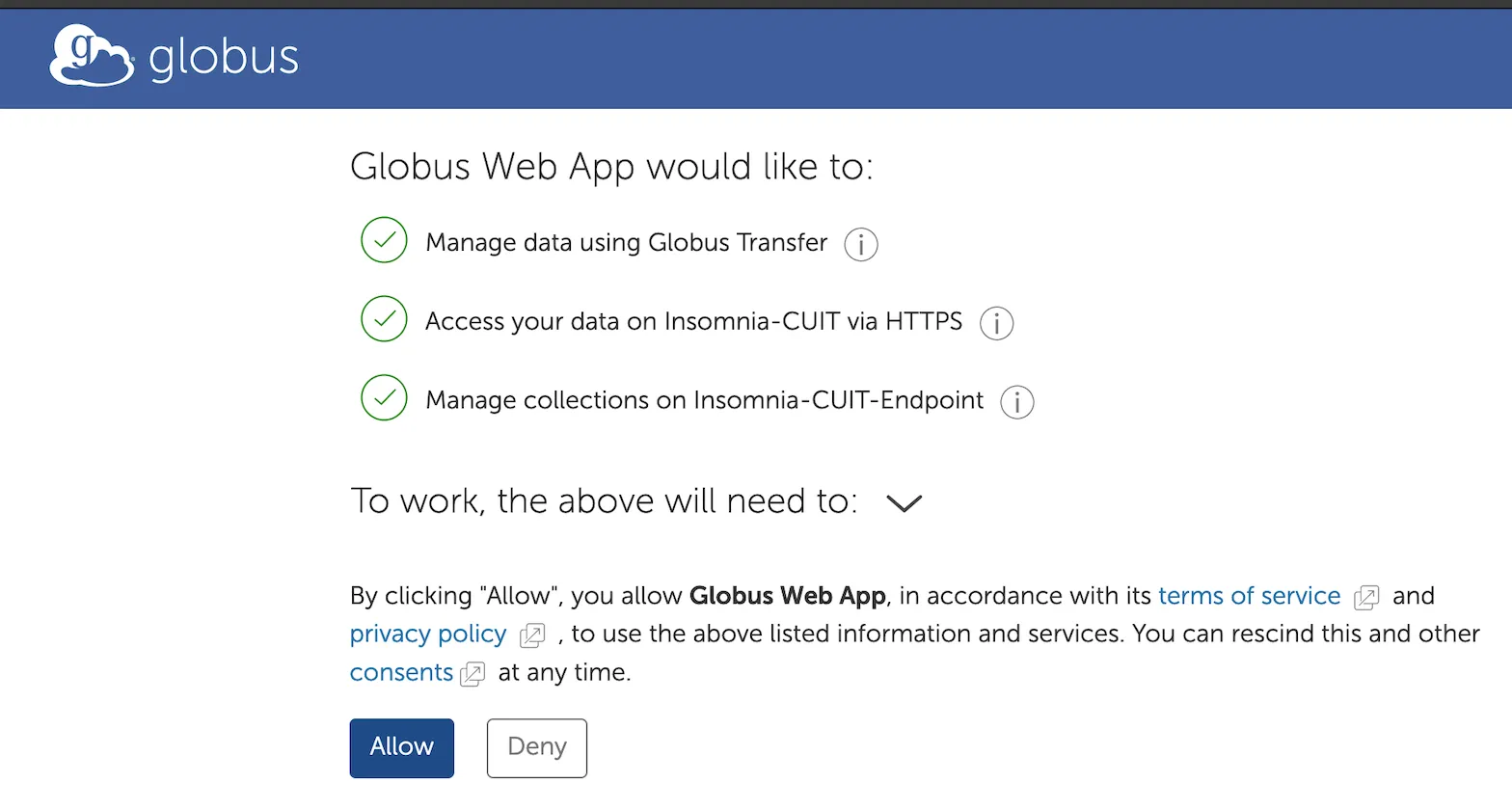
6. Once you select the cluster, you will need to authenticate your HPC account within Globus. Click Allow.
6. On the left, select the file(s) you would like to transfer.
7. On the right, specify the destination where you would like the files to be transferred to.
8. Click the Start button at the top on the side you will be sending the data from. You will see a pop-up indicating that the transfer is in progress.
9. You will receive an automated email from Globus Notification <[email protected]> when the transfer is complete. You can also monitor progress using the Activity page in Globus (accessible from the left-hand navigation panel).
In order to transfer data with Globus from one platform (source) to another (destination), you will need Globus collections associated with the respective platforms (for example, LionMail Drive to Box or Box to DropBox). Collections are configured on Globus Endpoint(s), a local instance of a Globus Server.
Please send an email to [email protected], and specify the source and destination platforms you are using. This will create a ServiceNow ticket assigned to CUIT RCS and we will work with you to determine if your department already offers a Globus Endpoint to host your collections, or utilize the central CUIT Research Computing Services Globus Endpoint to setup and host your source and destination collections.
FAQ
To create and share a guest collection, it is important to confirm two conditions:
- You are a member of Columbia's Globus Subscription. You can check this by navigating to Settings in the left-hand panel after you're logged into Globus, then clicking the Subscriptions tab. To request an account on one of Columbia's subscription groups, follow this decision tree to be directed to the proper group. Accounts will be provisioned within 1-3 business days.
- You have enabled data sharing in Globus Connect Personal (GCP). Open your Globus app and navigate to Preferences, then select the Access tab. Make sure the directory you are trying to share has Sharable and Writable (if applicable) checked.
- Then you may proceed with setting up your guest collection.
If you (or your department) don't have the IT expertise or resources to establish your own Globus server (aka Globus endpoint), then you can reach out to CUIT Research Computing Services by emailing [email protected] and we can help you set up a Globus collection (e.g. for Box, Google Drive, AWS S3, or other ) on our managed Globus endpoint.
Please bear in mind:
- RCS' managed endpoint is under Globus' "Standard" subscription, which does not allow sensitive data of any kind.
- Any collections that RCS establishes are meant to be short-term, however feel free to reach out and we can help you strategize on a longer-term solution.
While Globus transfers are optimized using GridFTP*, Globus transfers are still subject to your local environment's constraints, including:
- Local network speed (check your current speed here)
- If you are using using a laptop as an endpoint:
- Endpoints: Transfers involving a personal endpoint are likely to be slower than transfers between institutional endpoint.
- Laptop recommendations: If you are using your laptop as an endpoint: 1) Ensure your laptop is plugged in so it doesn't shut down and interrupt your transfer; 2) connect to the internet via Ethernet cable if possible (instead of wifi)
- Storage device recommendations (hard drives, flash drives): If you are transferring to a storage device, then solid state drives (SSDs) with USB-C or USB 3.0 connectors are recommended to optimize speed (rather than HDDs or SSDs with older connectors)
- File size: All transfers between two cloud-based platforms (such as Drive to Box, DropBox to S3...) are subject to slowness if you are transferring large amounts of small-sized files (10,000+ files). In this case, you can expedite transfers by manually grouping and compressing (zip/tar) files so you have a smaller number of files to transfer.
- Resources: The load or available resources (RAM, CPU, etc.) of the source and destination collections
- Storage systems: The performance of the source and destination storage systems
Note: The "effective transfer rate" that is included in e-mail notifications and reported by the details command by Globus should not be interpreted as raw bandwidth or throughput information!
As the Globus FAQ explains, the rate reported is the ratio of number of kilobytes transferred to the *total time taken to complete the transfer request*. The total time is calculated from the time the transfer request is submitted to Globus to the time the transfer is completed. It includes retry time, downtime on the Globus collections, time that the transfer is paused for credential renewal, and time for checksum calculations.
*Globus uses GridFTP, a high-performance extension to FTP, optimized for high-bandwidth, wide-area networks, providing more reliable high-performance file transferring and synchronization than ftp, scp, or rsync. Grid FTP automatically tunes parameters to maximize bandwidth by auto-selecting the most appropriate settings for concurrency and parallelism on every transfer task.
In addition to the considerations above, Box has some service limitations to consider when working with Globus:
- If transferring to Box: Box applies a file-size limit. For CUIT's Enterprise Box service, this limit is maximum 50 GB. All files that you want to transfer to Box using Globus must be less than 50GB individually.
- If you have many 50GB+ files to transfer, you should consider alternative storage platforms, such as AWS S3, GCP Storage, or DropBox.
- If transferring from Box: If you use Box Notes, you will need to use a third-party conversion tool, or a text editor which natively supports Box Notes, in order to view and edit the contents of your Note after you download it out of Box.
- For transfers both to or from Box: All transfers between two cloud-based platforms, including Box, are subject to slowness if you are transferring large amounts of small-sized files (10,000+ files). In this case, you can expedite transfers by manually grouping and compressing (zip/tar) files so you have a smaller number of files to transfer.
If you are transferring two files with the exact same name of the same type (.jpg, .doc, etc.) to Box, DropBox, or OneDrive, you will receive an error:
nameAlreadyExists"\r\n500-message: "A file with the same name is currently being uploaded. Change the filename and try to save again."
...in this case, you will need to either delete the original file, or rename the source file.
If you download the photo and email files to your computer storage (and/or upload them to Google Drive or another Globus-supported storage system), then you could use Globus to transfer from your storage to another storage location. However Globus is designed for research data transfers and is likely not the most efficient transfer method for large amounts of emails or photos.lmk if