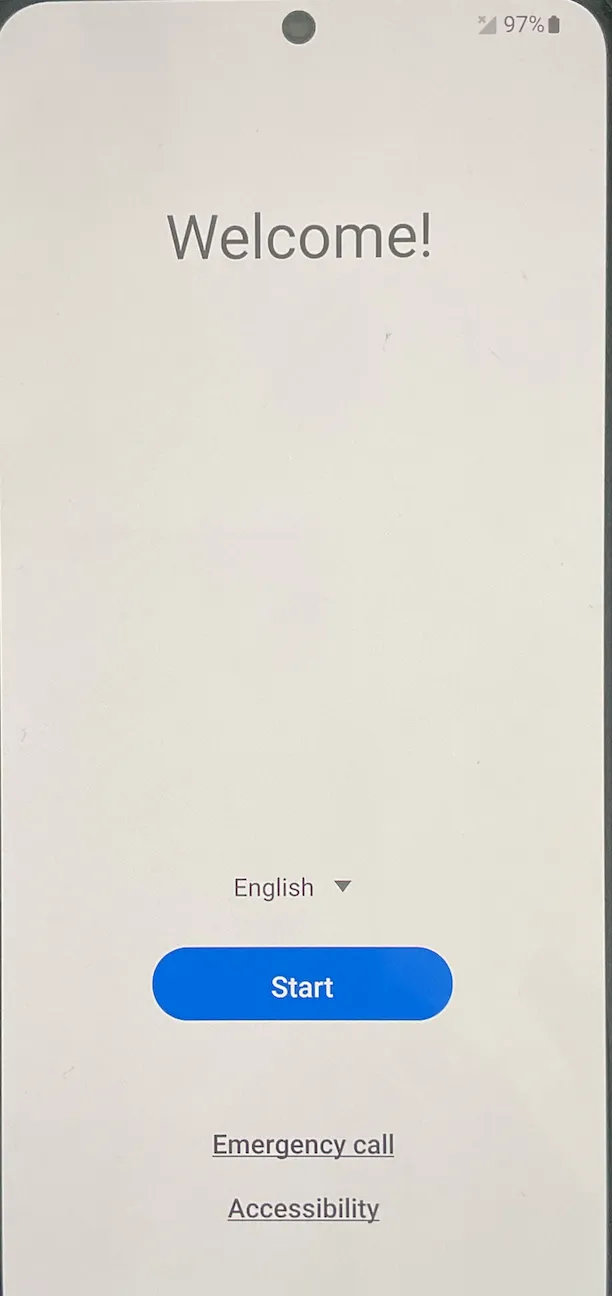
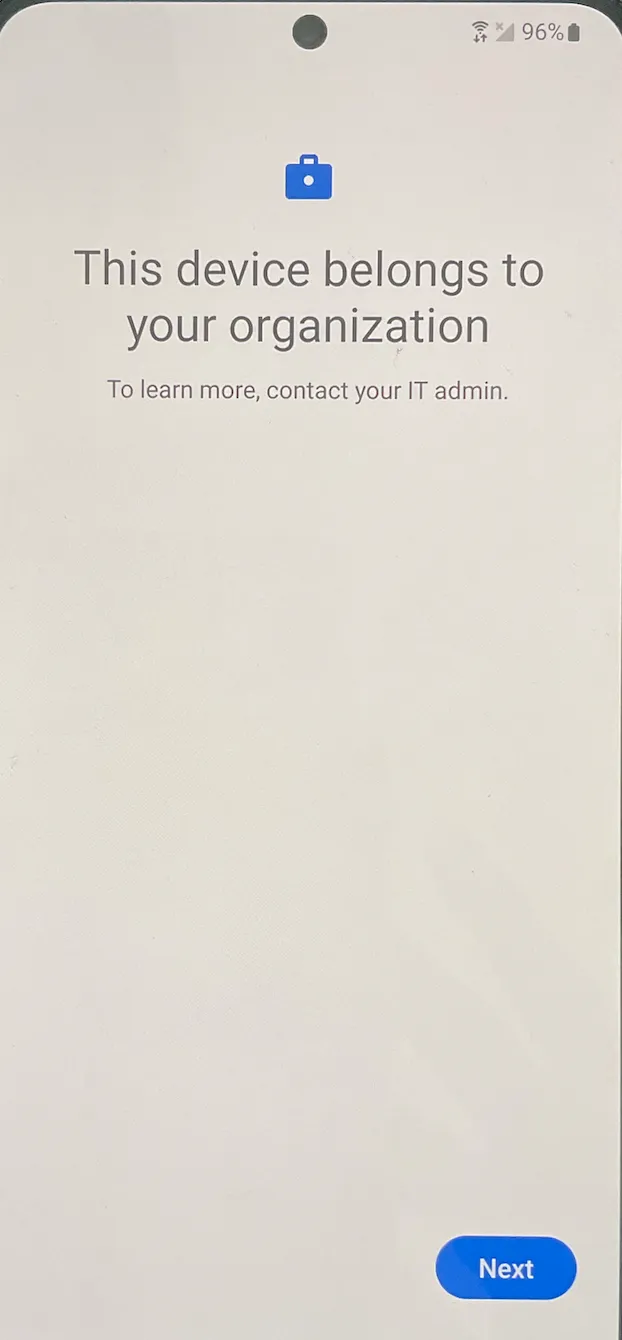
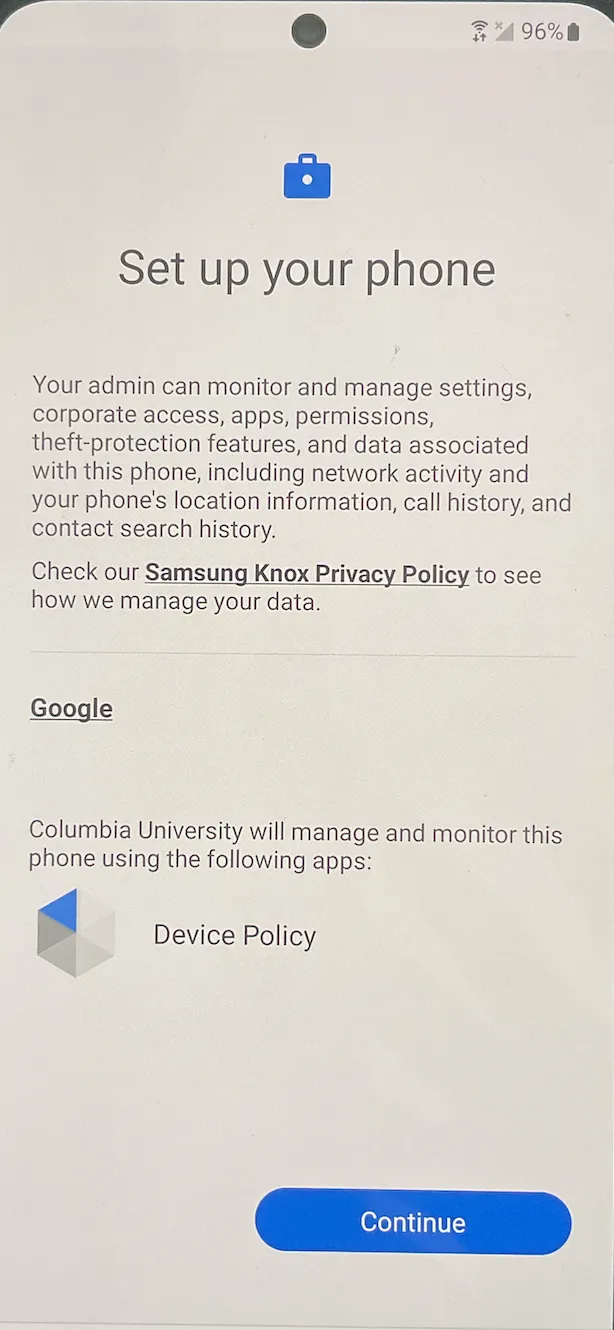
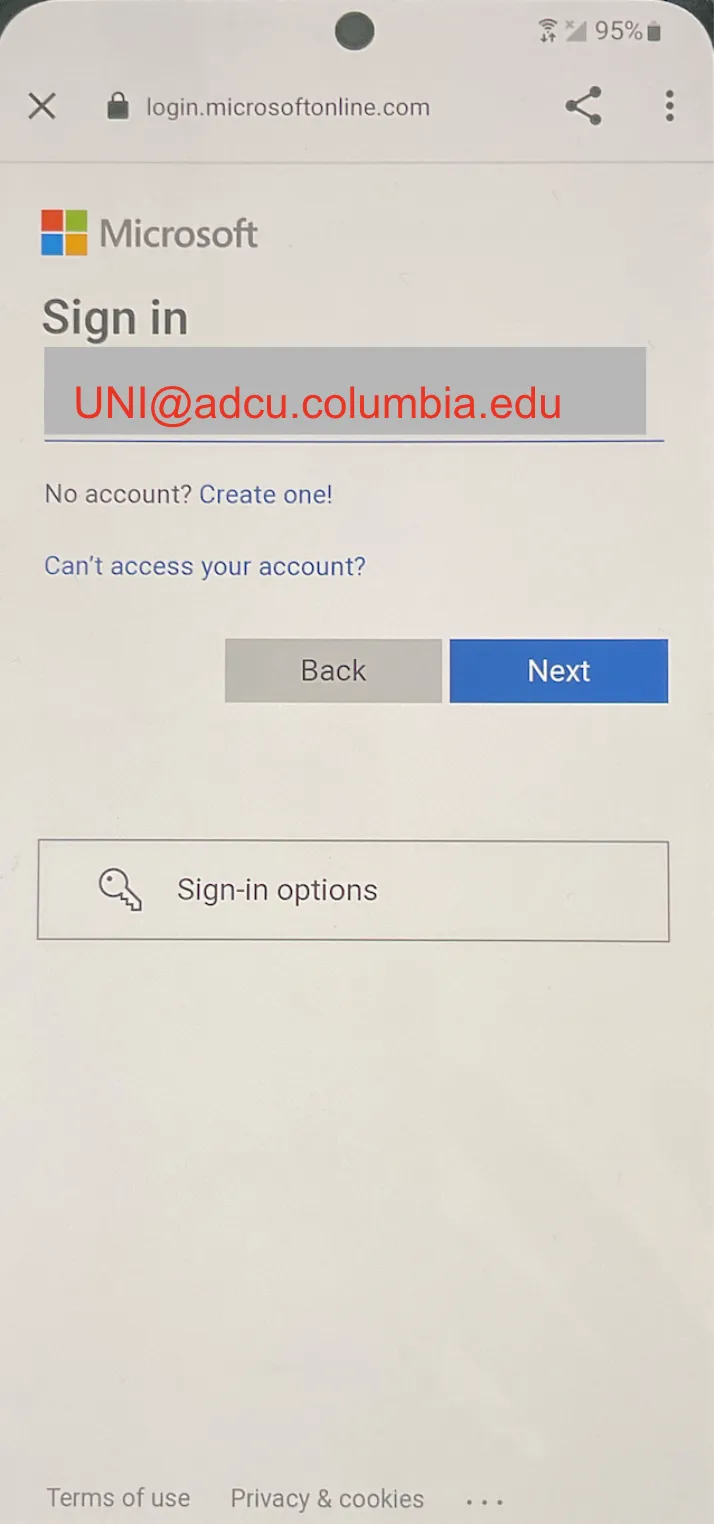
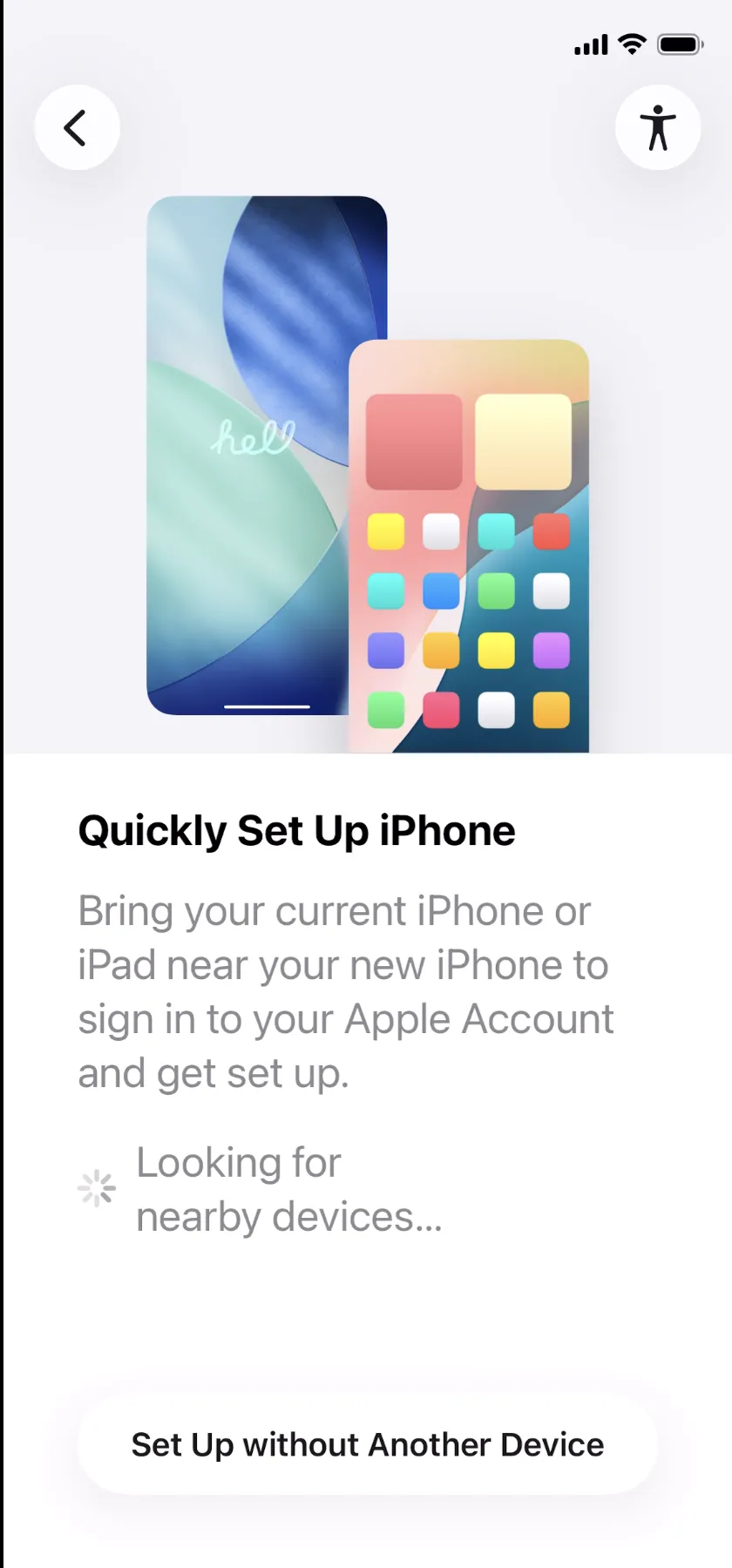
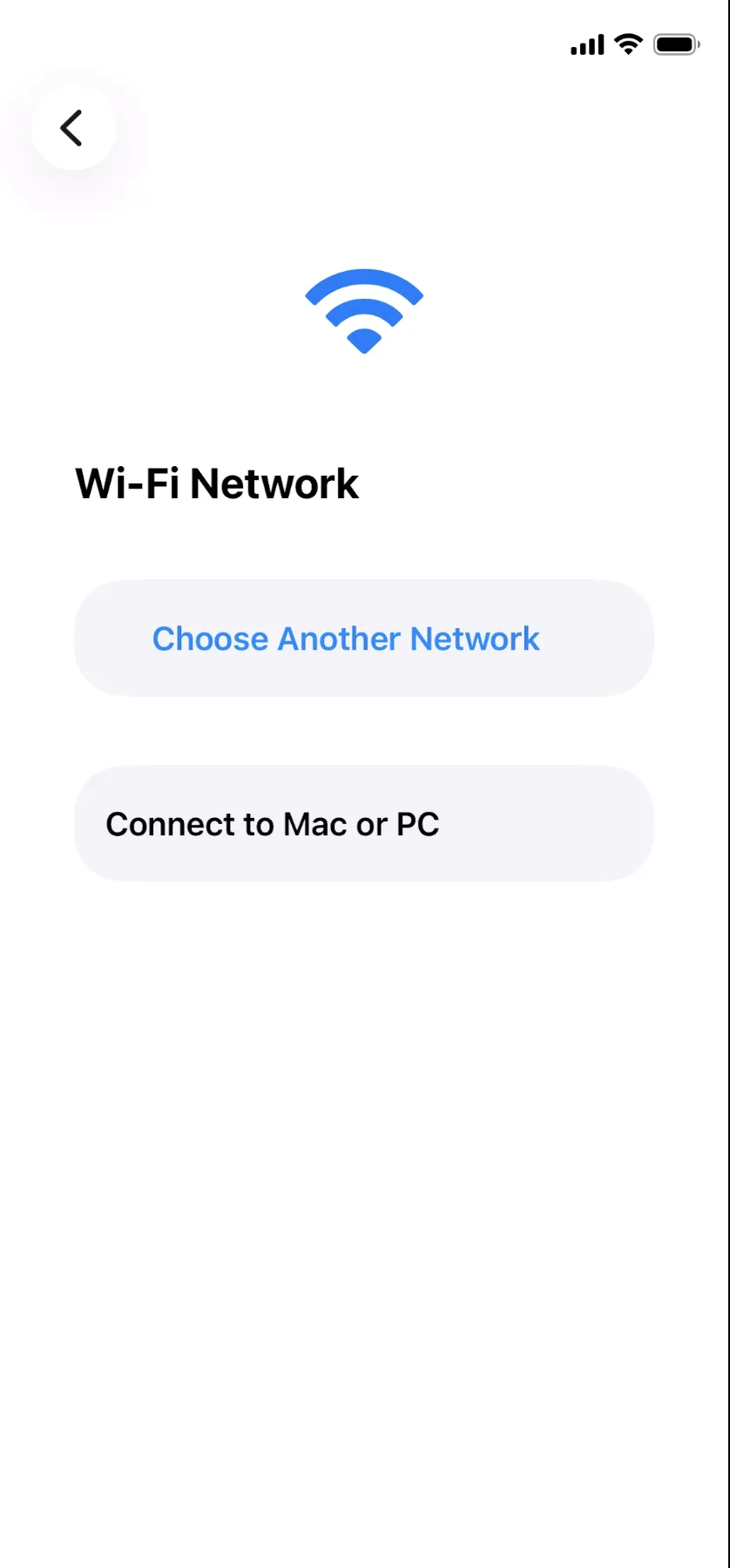
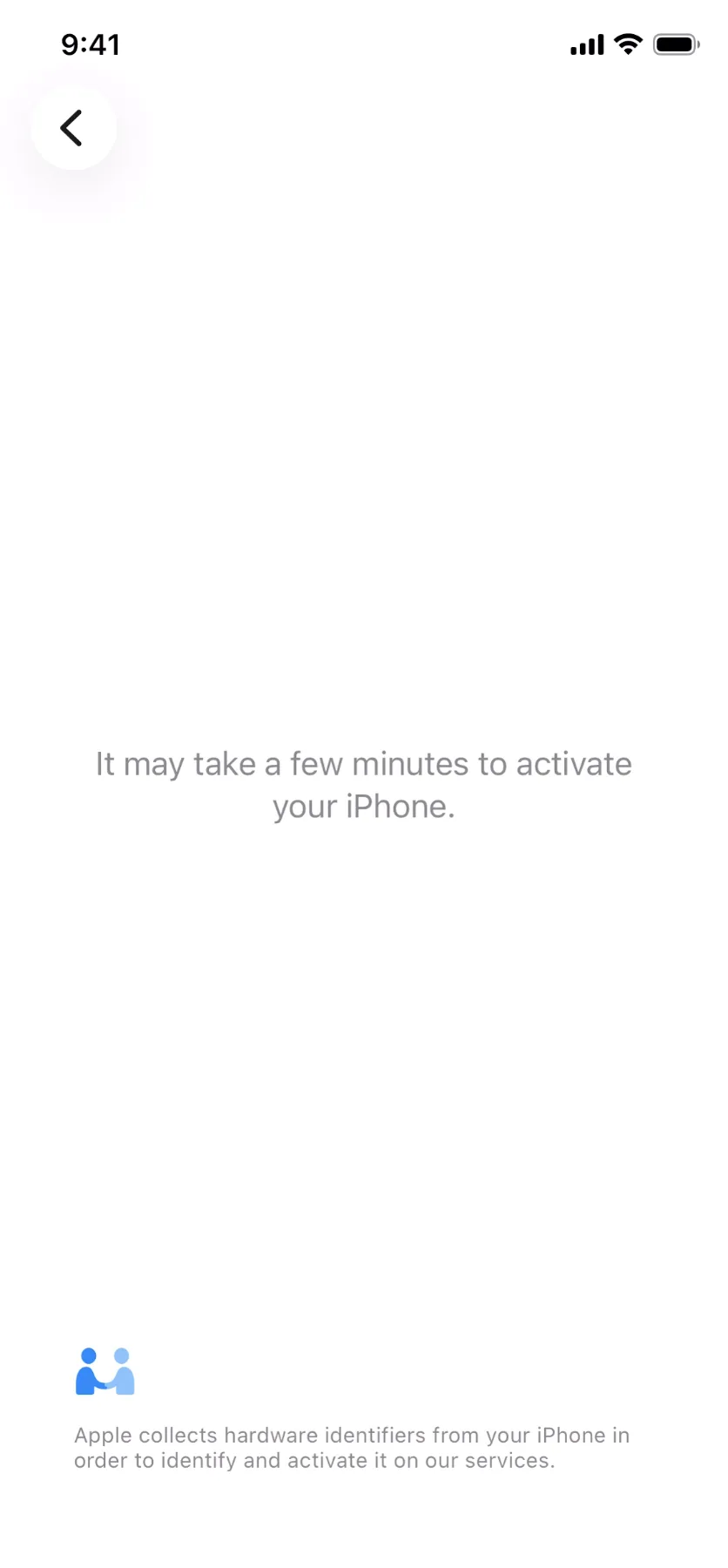
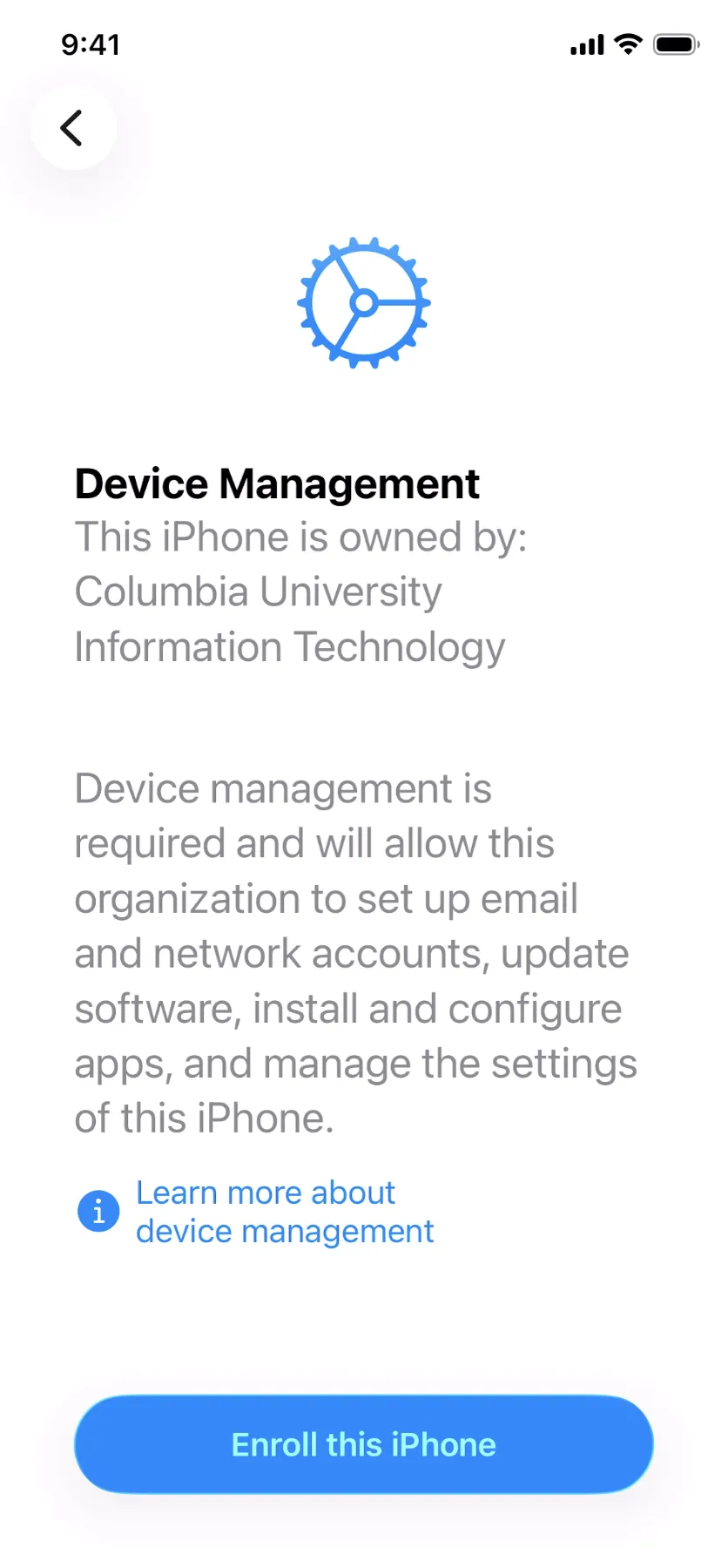
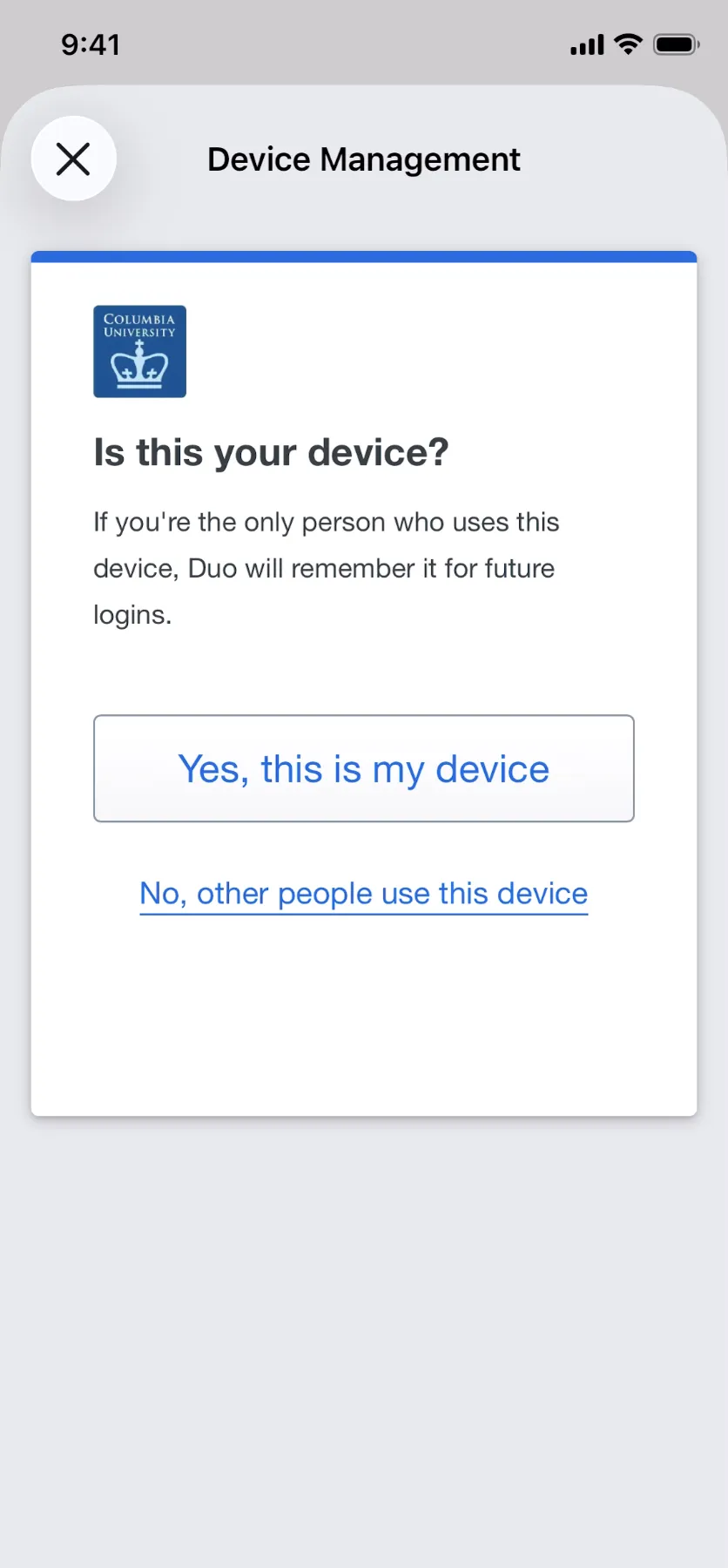
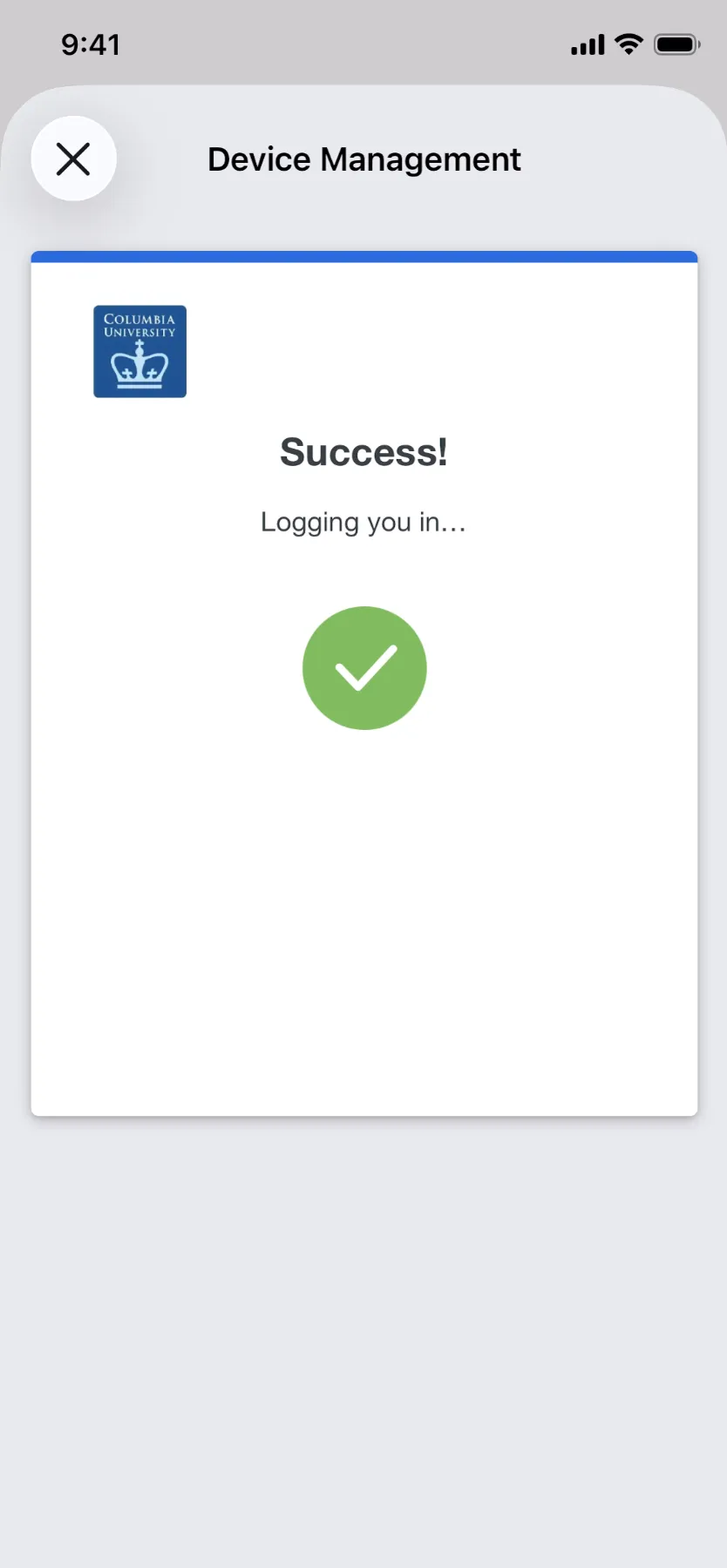
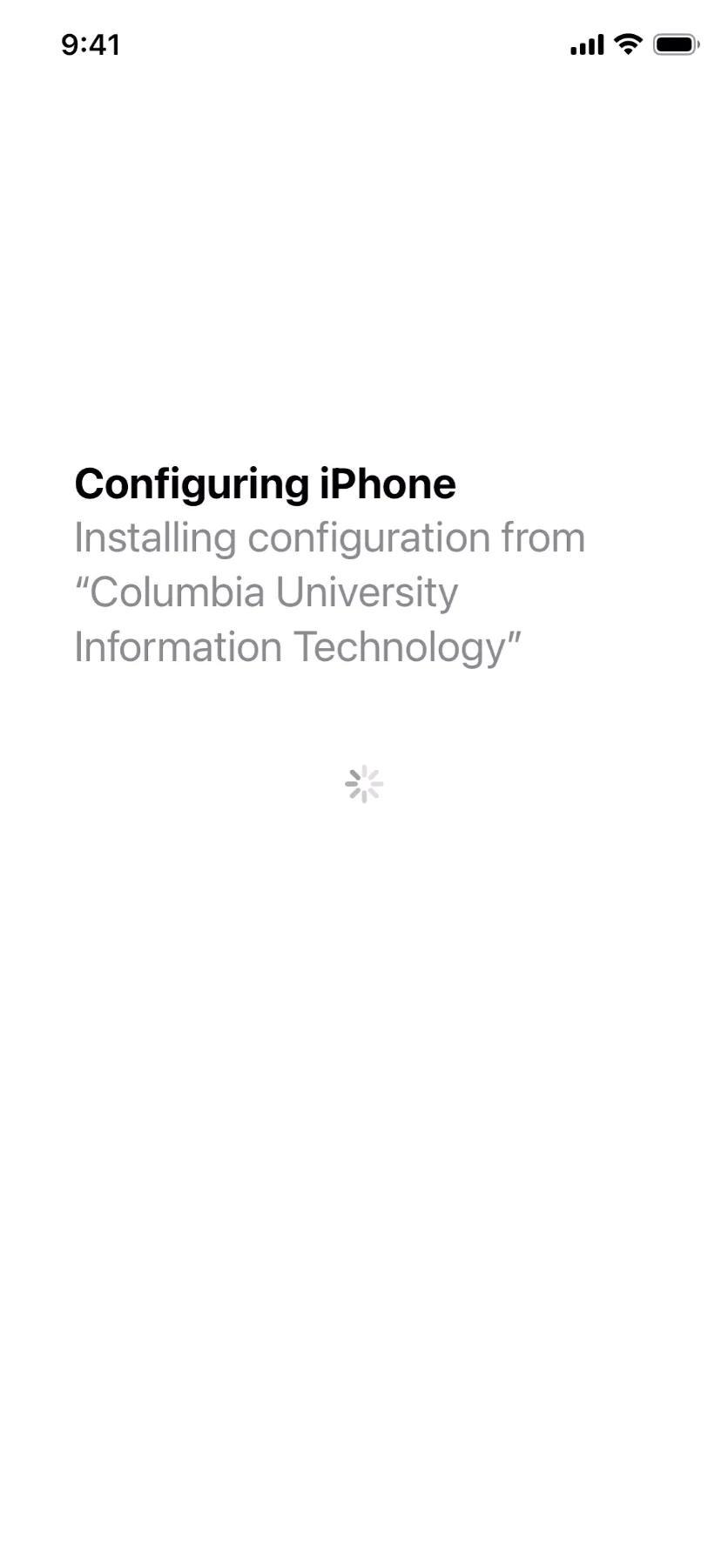
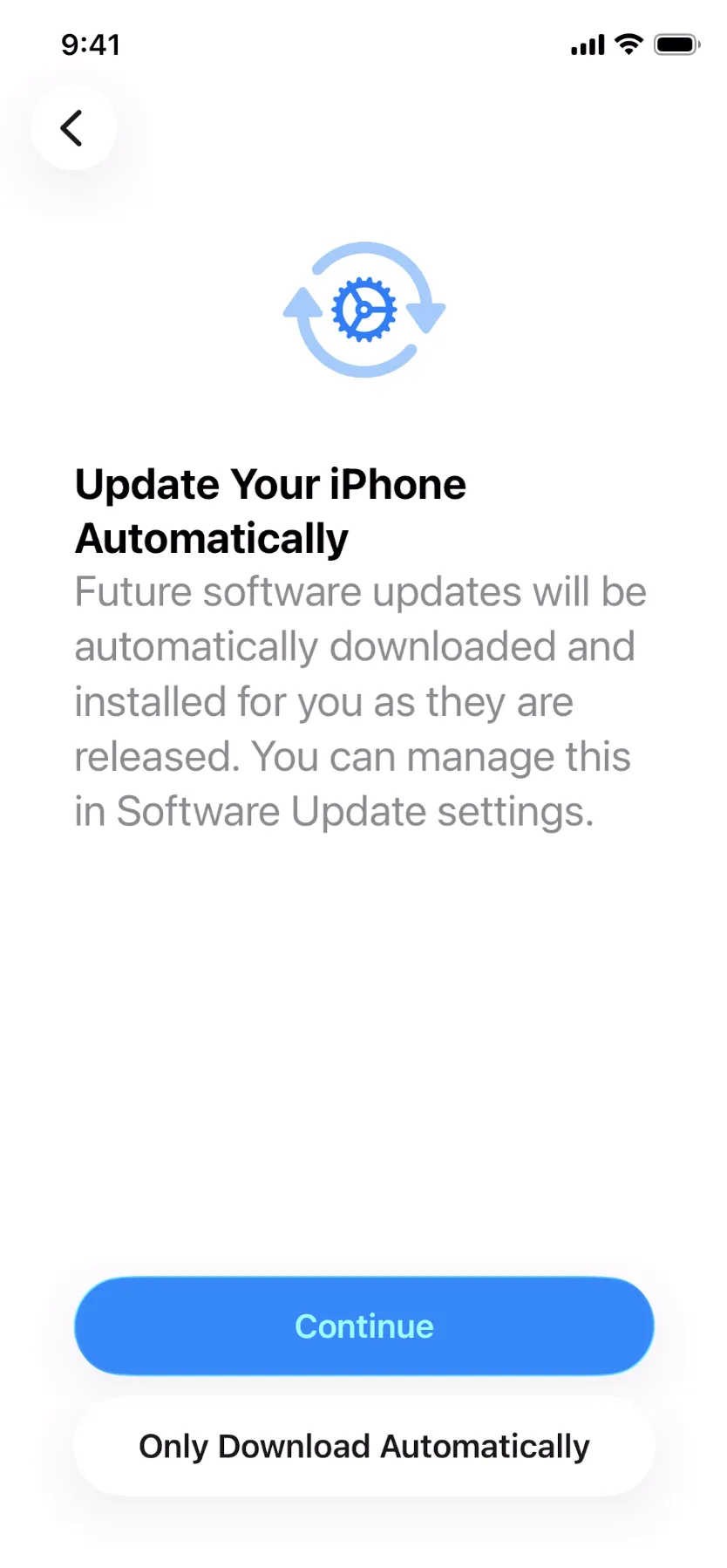
EMM Enrollment
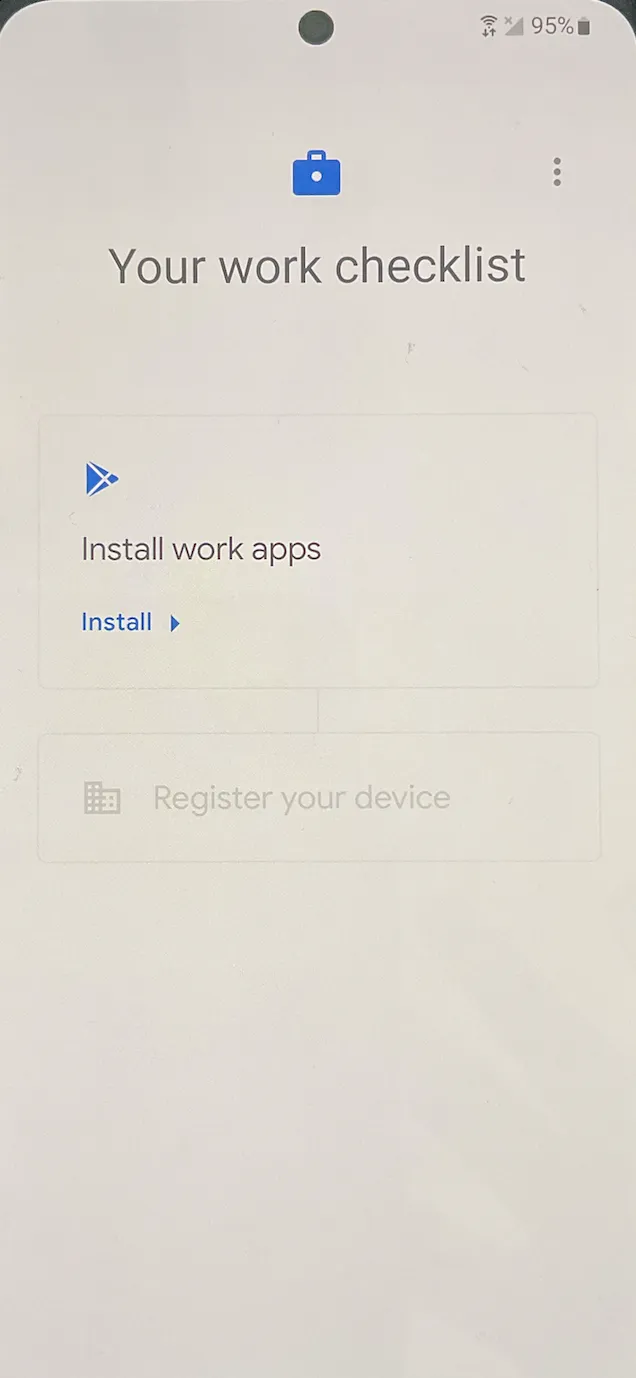
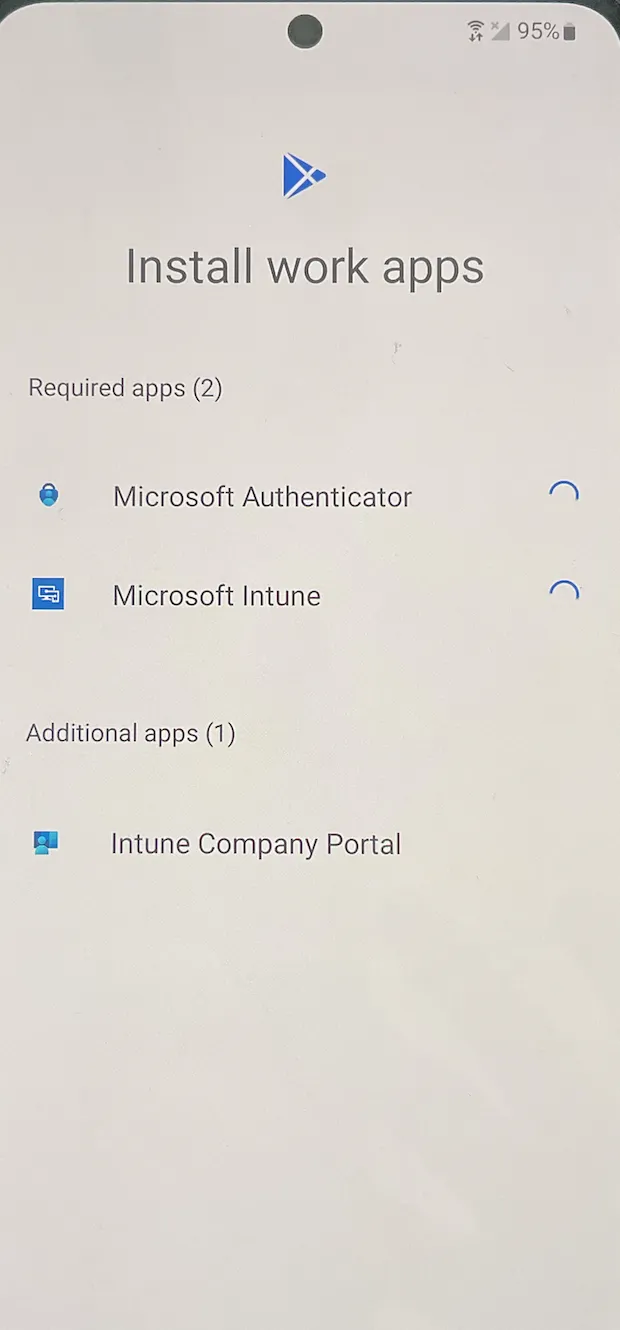
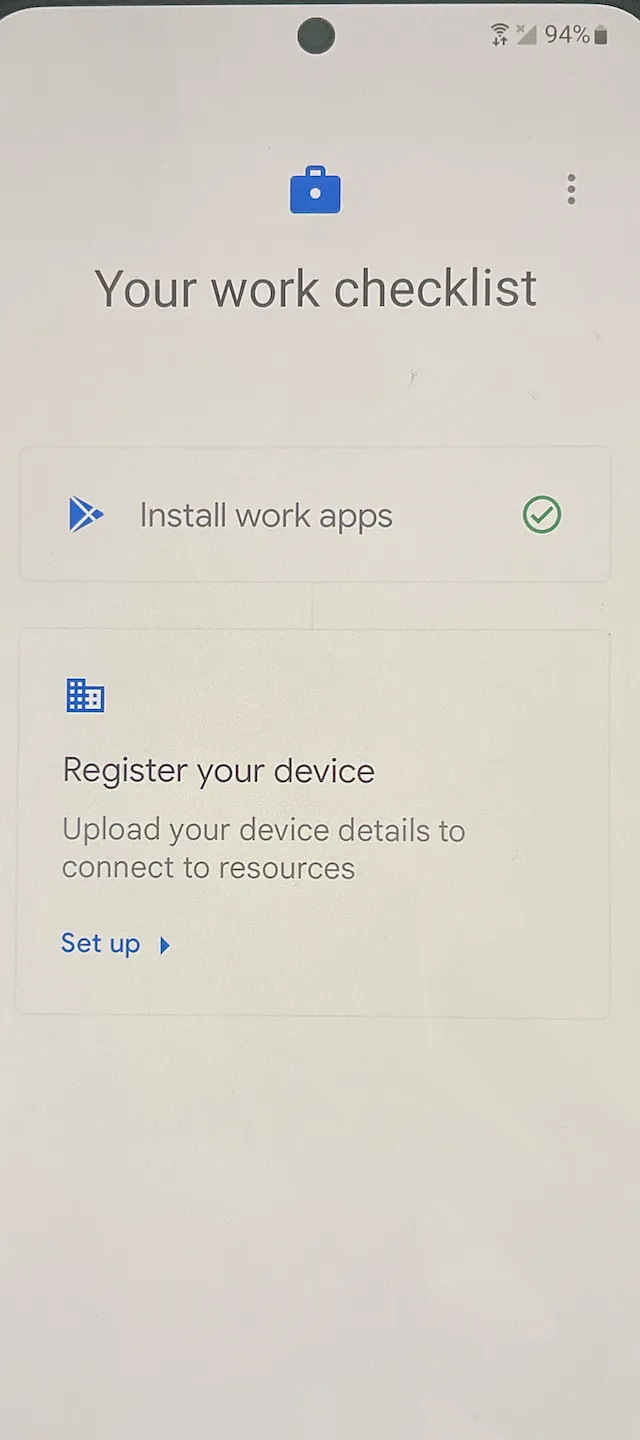
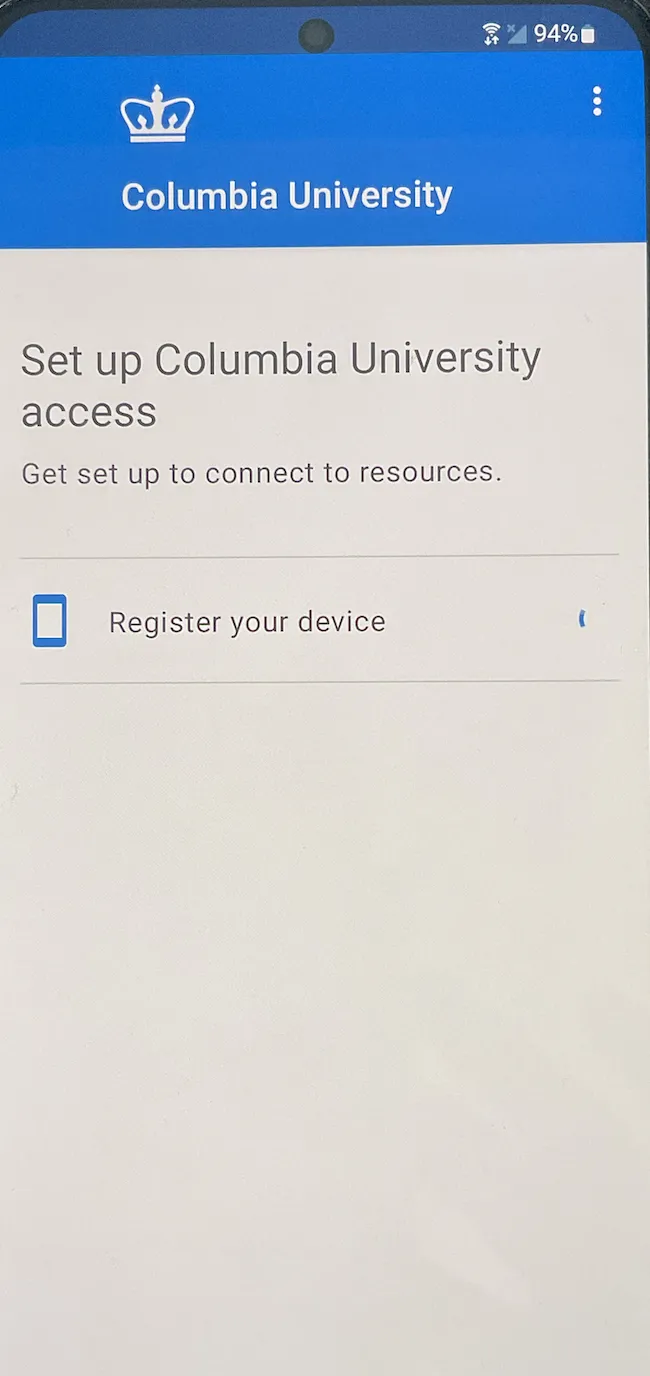
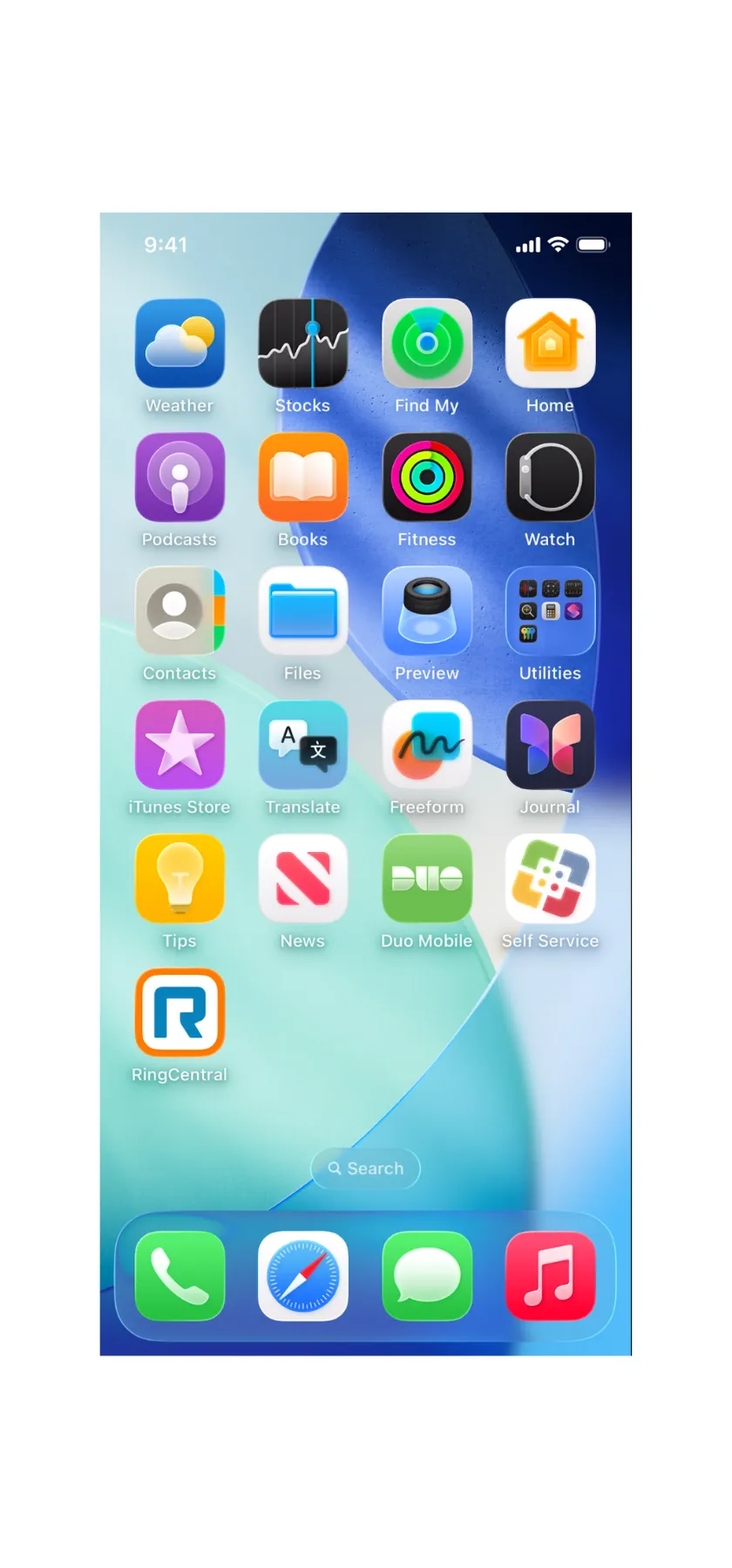
Please note: The icons of the Jamf Self Service App (for iPad & iOS) & Microsoft Intune (for Android) that will be pre-installed on CUIT-managed devices.

Prior to Enrolling in CUIT's MDM
Prior to your scheduled enrollment date, ensure that you save any important data that you do not want to lose by reviewing the information below for your device. Make sure you understand which data is stored locally on your device, which is stored in the device manufacturer’s cloud service (for example, iCloud) and which is stored in a Columbia cloud service (LionMail and/or Exchange.) Data stored in a cloud service will not be lost during enrollment.
If you would like assistance in re-downloading your apps to your device following enrollment, please schedule an appointment with a CUIT Voice & Mobile Technician.
You will not be able to restore your device from a backup while enrolling in Workspace ONE UEM**.
- Prior to enrollment, make sure to back up all photos and videos on your device following Apple's instructions.
- Restoring Apps for iOS devices: Because you will not be able to restore your phone from a backup following enrollment, you will need to re-download all apps you have purchased from the Apple App Store, or reinstall them via iTunes.
**Once you have completed enrollment, you can resume backing up your device as you normally would.
Android devices can be restored from a backup following the installation of Workspace ONE UEM.
- Ensure that you have backed up your data following the instructions for your device on Samsung’s website. This includes photos and videos, which cannot be restored from a backup.
Click on the corresponding document to enroll your Android or iOS Device. Please note that for Android devices, you will need to encrypt your device prior to enrollment.
Before beginning enrollment, you will need to encrypt your device. Encryption can take an hour or more, depending on how much data is to be encrypted. Start with your battery at least 80% charged and keep your device plugged in until encryption is complete.
1. Navigate to your device’s Settings, then tap Security > Encrypt device.
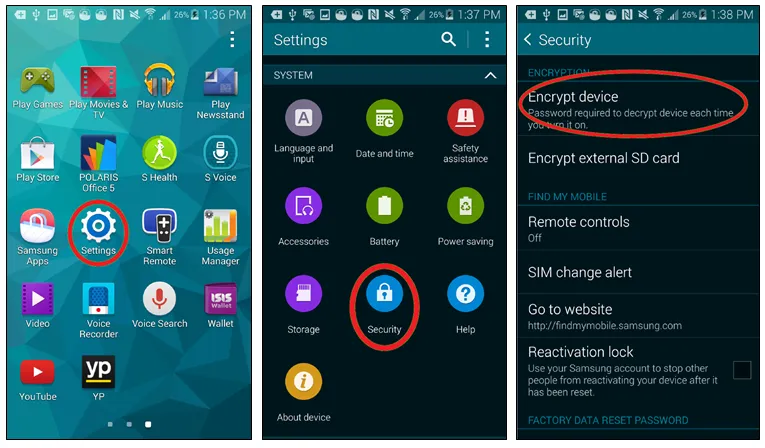
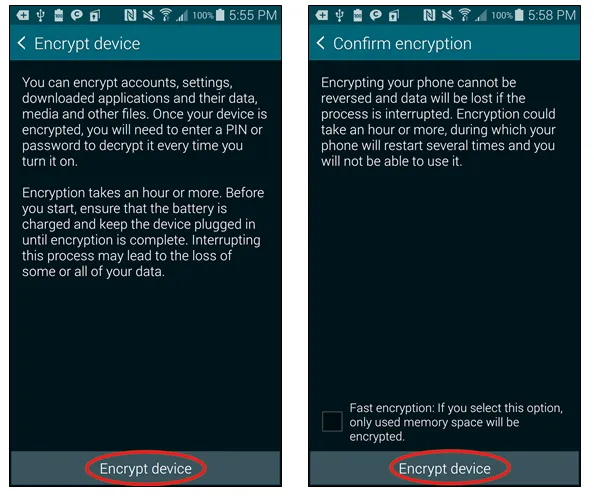
2. Tap Encrypt Device at the bottom of the screen, then tap Encrypt Device once more. Do not select fast encryption.
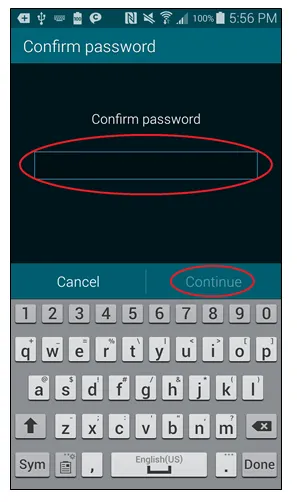
3. If you have a password, you will be prompted to enter it for confirmation.
Keep in mind that encryption can take an hour or more, depending on how much data is to be encrypted. Start with your battery at least 80% charged and keep your device plugged in until encryption is complete.
4. Once encryption is done, you are ready to begin enrollment.
Before beginning enrollment, you will need to encrypt your device. Encryption can take an hour or more, depending on how much data is to be encrypted. Start with your battery at least 80% charged and keep your device plugged in until encryption is complete.
1. Navigate to your device’s Settings, then tap Lock screen and security > Other security settings > Encrypt device.
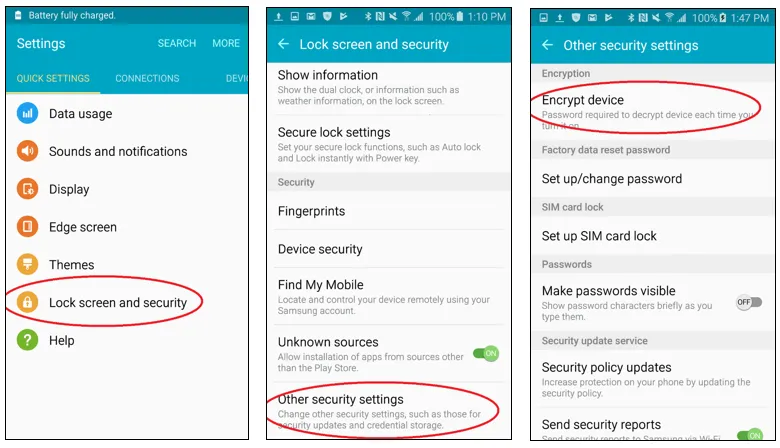
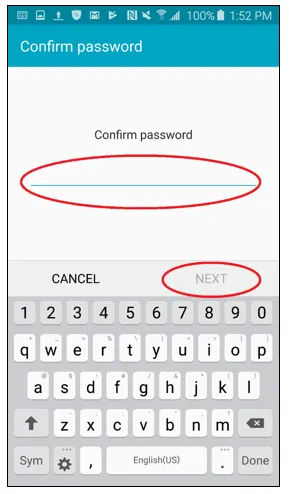
2. Tap Encrypt Device at the bottom of the screen. If you have a password, you will be prompted to enter it for confirmation, then tap Next.
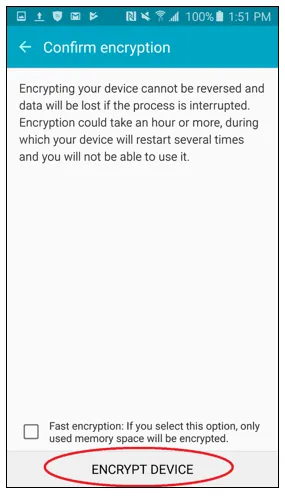
3. Tap Encrypt Device once more. Do not select fast encryption.
Keep in mind that encryption can take an hour or more, depending on how much data is to be encrypted. Start with your battery at least 80% charged and keep your device plugged in until encryption is complete.
4. Once encryption is done, you are ready to begin enrollment.
The Galaxy S7 and S8 are partially encrypted right out of the box, but before beginning enrollment, you will need to complete this encryption. Encrypting your device will only take a minute or two.
1. Navigate to your device’s Settings, then tap Lock Screen and Security > Secure Startup.
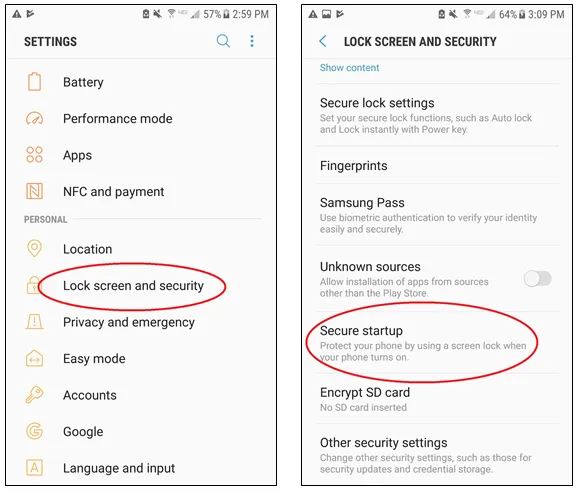
2. If you have a PIN, enter it and tap Done. Then check Require PIN when phone turns on, and tap OK.
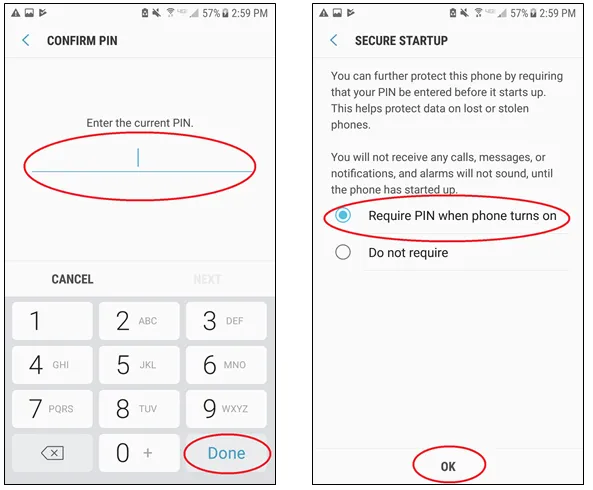
3. Encryption is done and you are ready to begin enrollment.