Report Suspicious Activity - Think You’ve Been Targeted?
If you suspect an email, text, or call is a scam, act immediately:
Don't click, don't reply, and don't download. Take these 3 steps to report the threat:
- How to Report Phishing Emails: Follow the instructions to report phishing in this link. This allows our team to investigate and block the threat for everyone.
- Report Urgent Threats: If you believe your account is compromised or you are facing an active threat, email [email protected] or call 212-854-1919.
- Secure Your Account: If you clicked a suspicious link or shared credentials, change your password immediately via Manage My UNI.
What are you experiencing?
- "I received a message about an account issue."
- "I scanned a QR code and don't trust the site."
- "I got an urgent call about a 'security issue.”
Golden Rules for Security
- Go Direct: If you receive an urgent alert regarding your account, do not click the links provided. Manually navigate to the official website or app to verify your status.
- Verify, Don't Trust: Never rely on contact information, phone numbers, or links included within an unsolicited message.
- Pause and Validate: Be skeptical of high-pressure tactics. Legitimate organizations will not threaten immediate account suspension or demand urgent action via text or email.
How to report a suspicious email to [email protected]
A 45-second how-to video for LionMail/Gmail also is available to demonstrate how to report phishing.
- Open the suspicious message you'd like to report.
- Click the three dots in the upper-right corner of the message to see your options.
- Click Show Original. A new window (or tab) opens with the raw message, including the complete header.
- Click Download Original.
- Address an email to [email protected].
- Attach the downloaded .EML file to your email and click Send.
A 45-second how-to video for Apple Mail also is available to demonstrate how to report phishing.
- Select the suspicious email that you would like to forward.
- Select File from the menu pane, then click Save As.
- Choose a location for the file (often your desktop), and change the format to Raw Message Source. Click Save.
- Address an email to [email protected]. Attach the downloaded .EML file to your email. Click Send.
1. Double-click on the message you want to forward.
2. Click on the Message Tab, and find the Respond section.
3. Expand the More Respond Actions drop-down menu, and click Forward as Attachment.
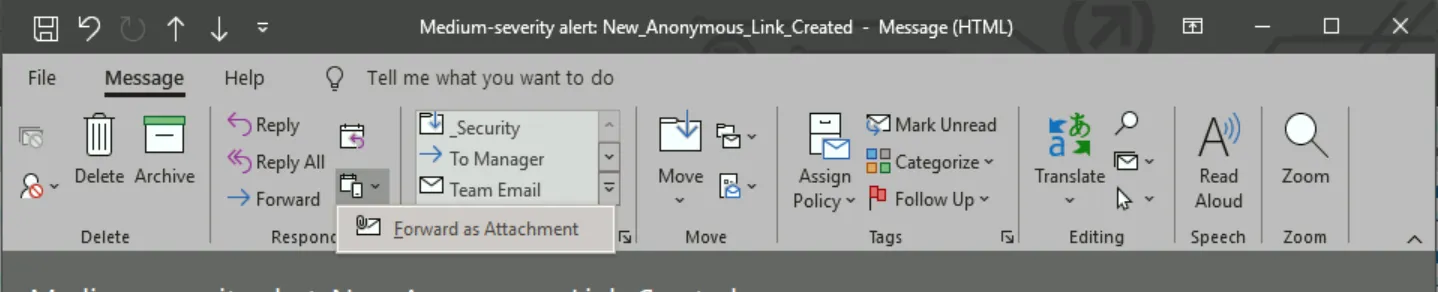
4. Send the message (with attachment) to [email protected].
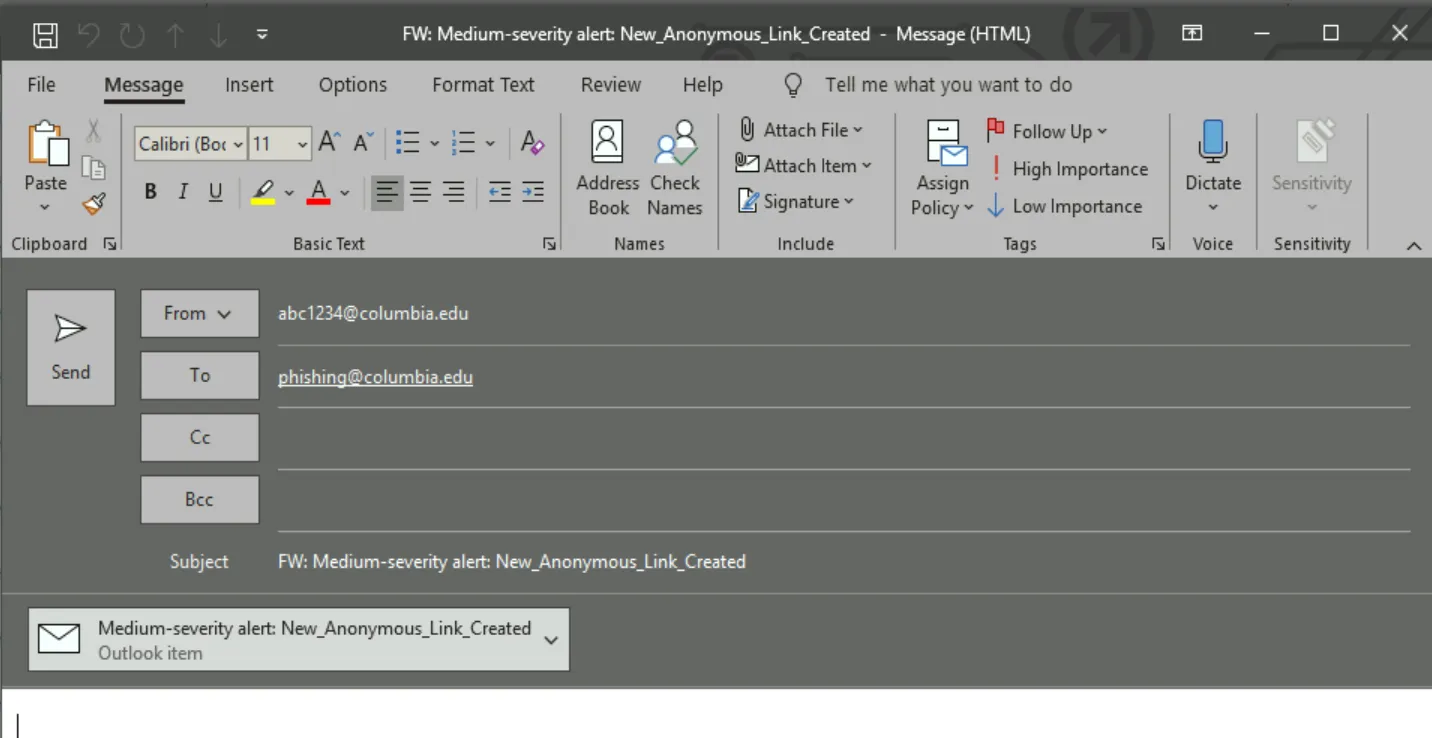
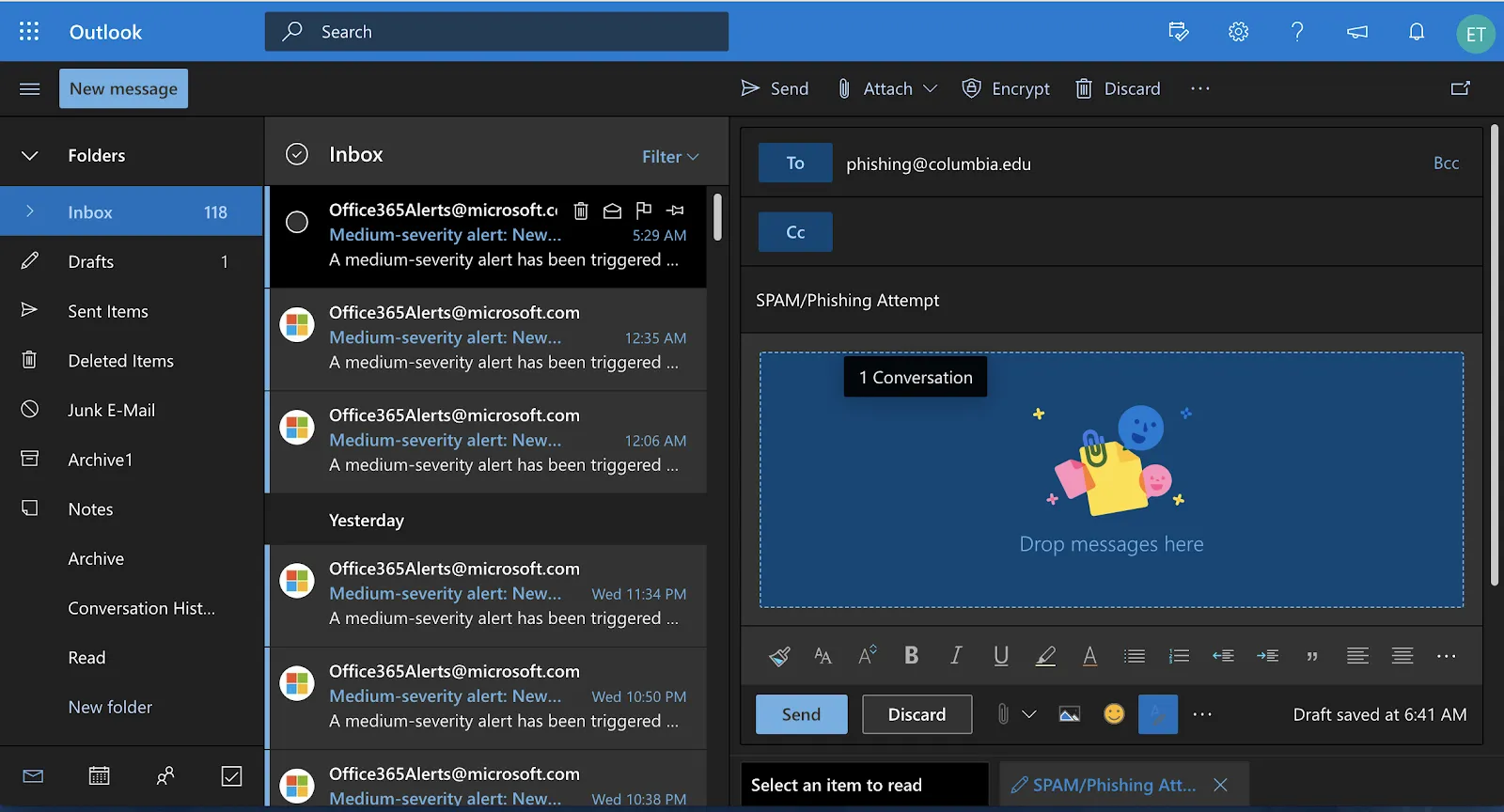
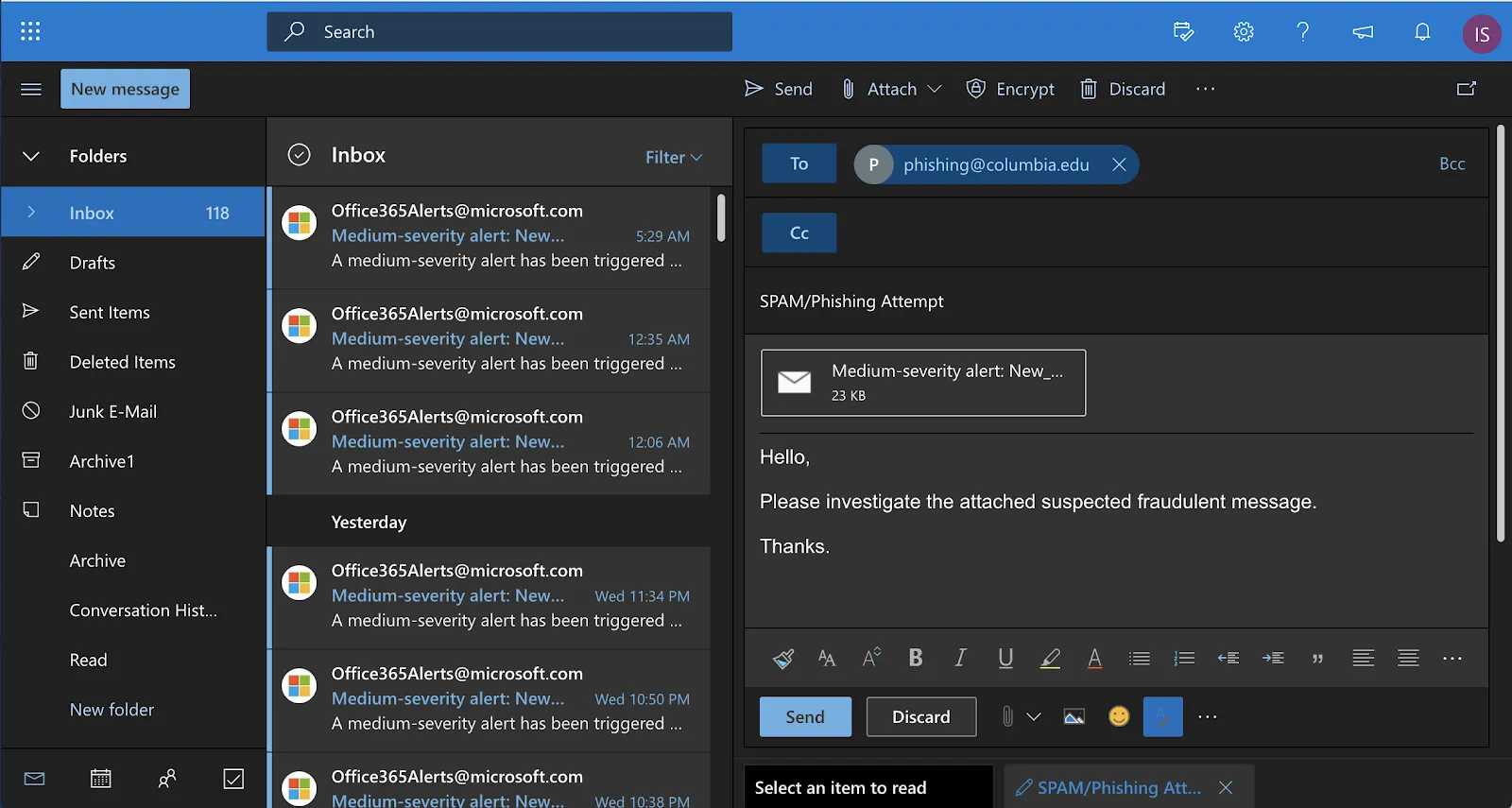
A 45-second how-to video for Office 365 also is available to demonstrate how to report phishing.
1. Click the New Message Button.
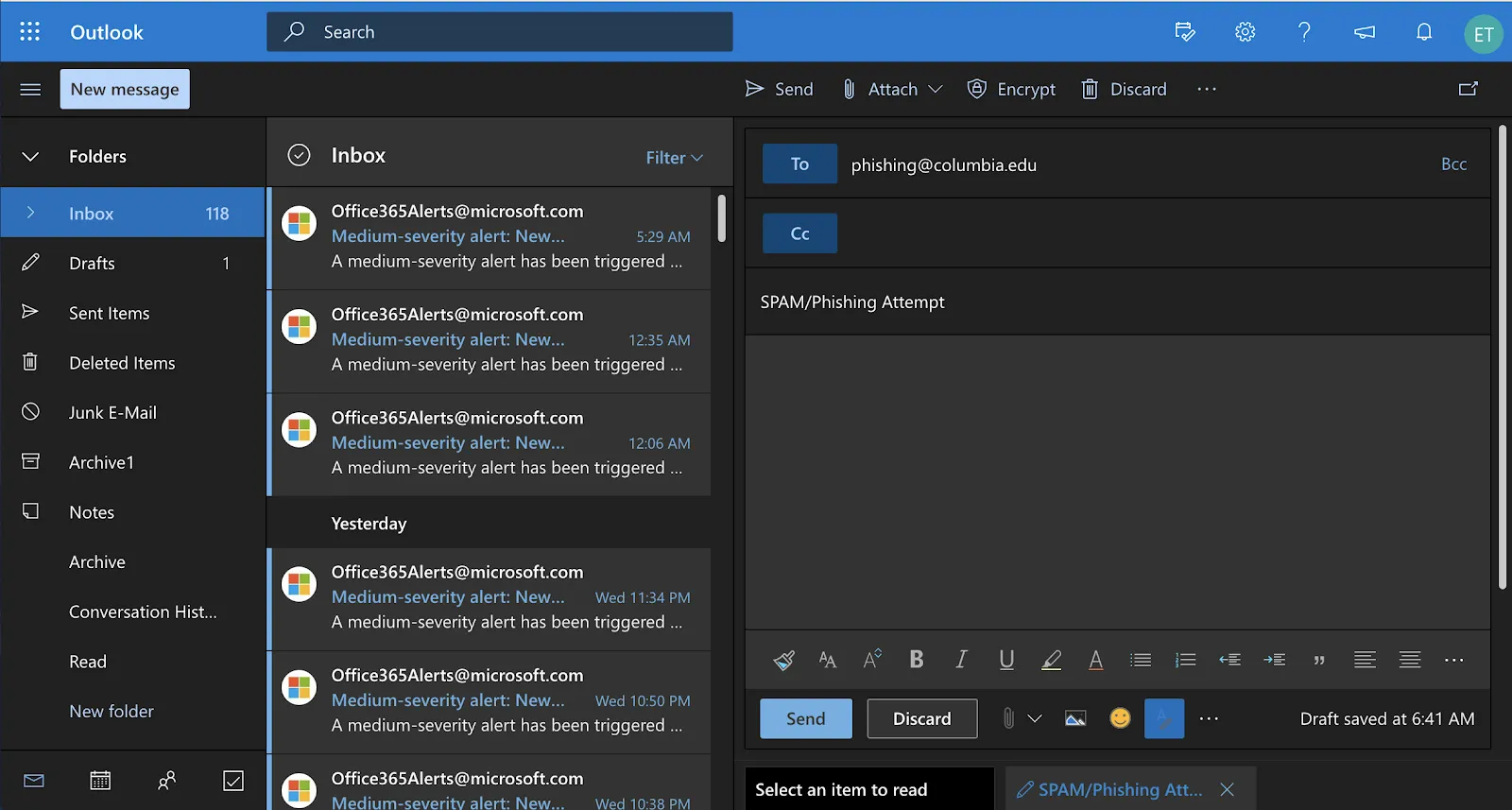
2. Drag the email you want to forward into the body of the blank message (this message will be added as an attachment).
3. Send the email (with attachment) to [email protected].
Campus Specific Scenarios
Attackers often masquerade as legitimate university departments to build trust and urgency. Be particularly cautious if you receive unsolicited messages involving these common Columbia-specific themes:
- The Tactic: Attackers spoof email addresses that look like they come from CUIT or HR, claiming that your "direct deposit information needs to be updated" or that you have an "overdue tax form."
- The Trap: They link to a fake login portal designed to steal your UNI credentials.
- The Golden Rule: CUIT and HR will never ask you to verify banking details or payroll information via an email link. Always navigate to PAC directly through your bookmarks or the official portal.
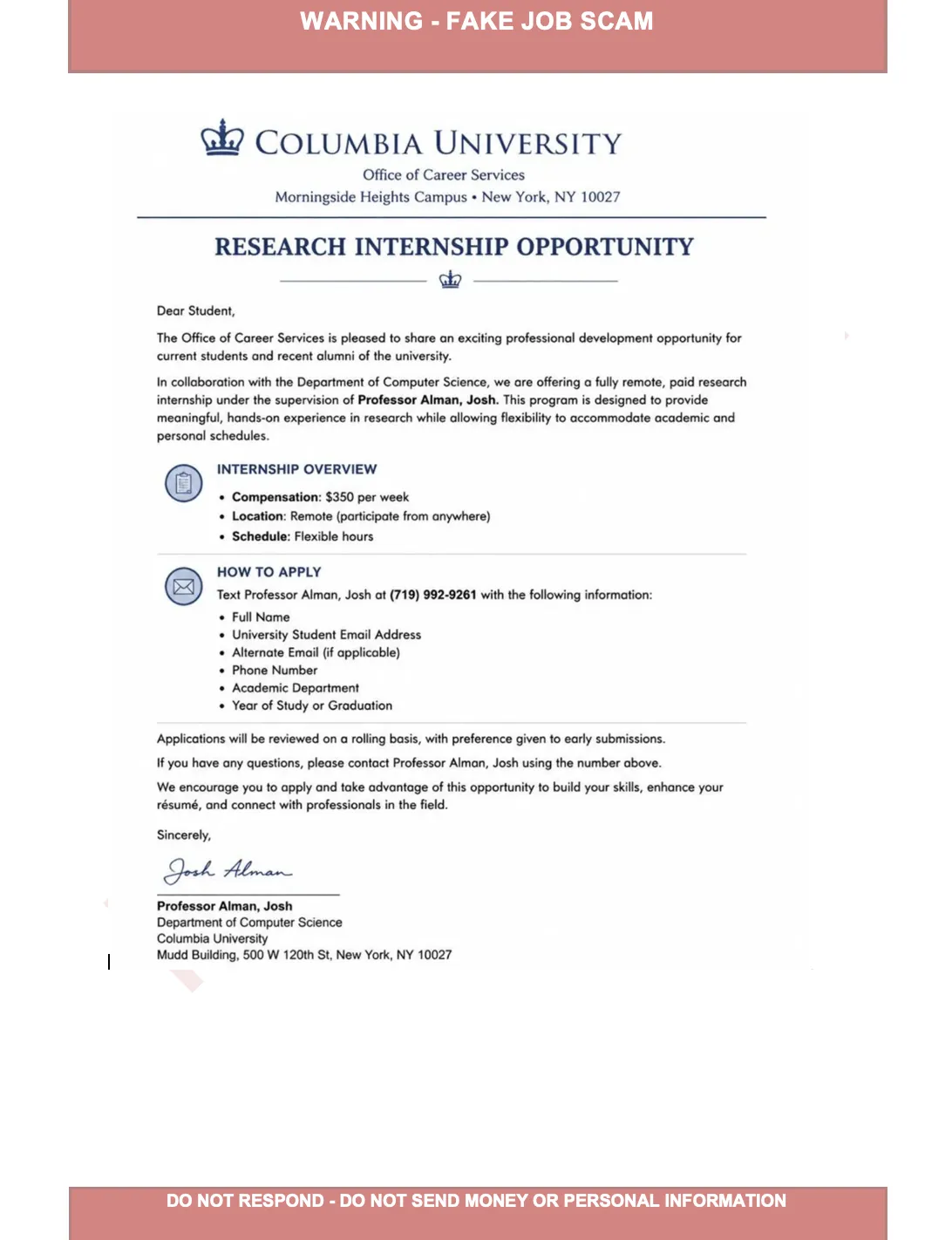
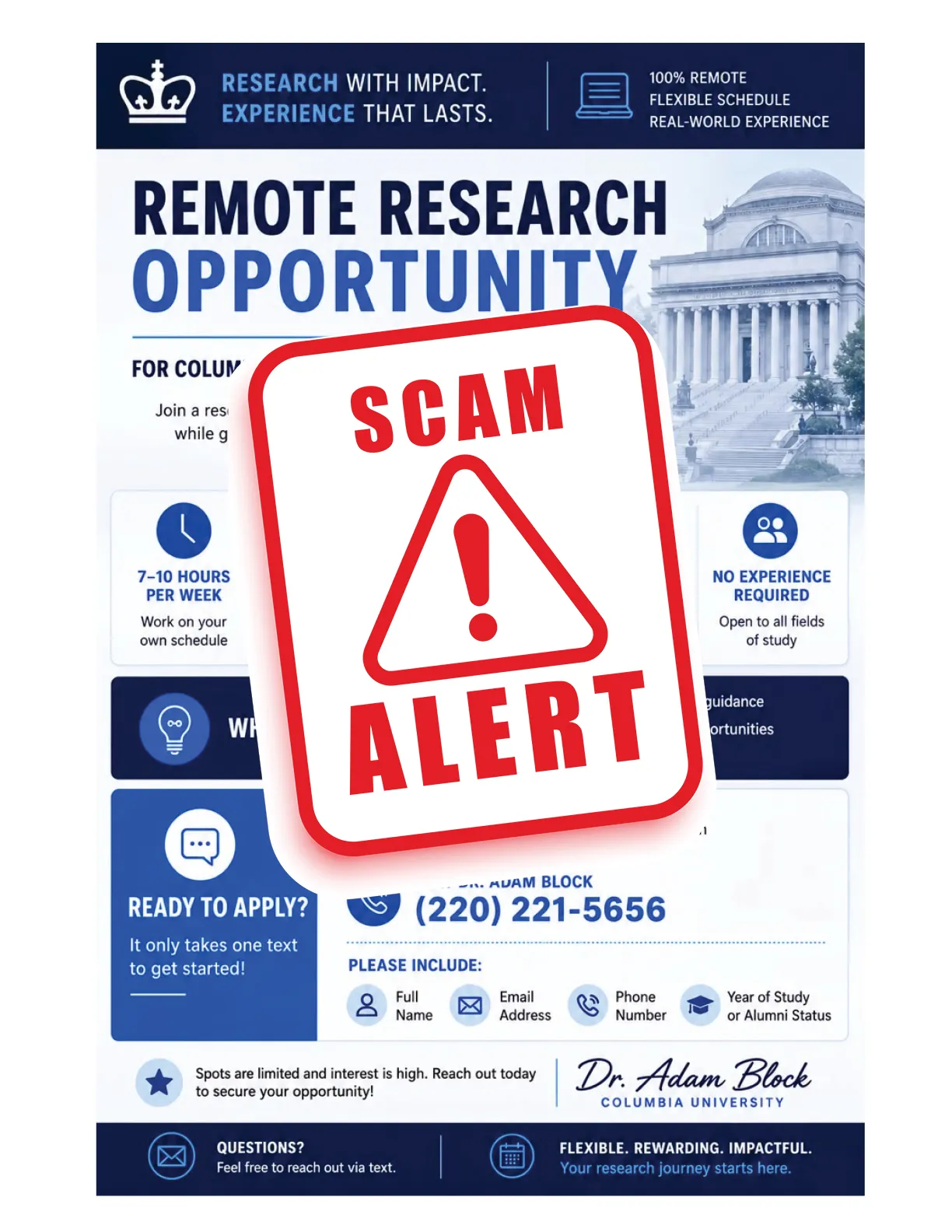
- The Tactic: Attackers impersonate professors or university administrators to gain the trust of students or staff, often by spoofing email addresses or creating fake job opportunities in the professor's name.
- The Trap: They leverage the authority of the faculty member to pressure the victim into urgent financial actions or sharing personal information.
- Protection: Always verify requests from faculty or staff through a known, official channel (e.g., their verified department email or phone number) before acting, especially if the request is urgent or involves money.
- The Tactic: Attackers lure students with 'too good to be true' job offers, often for personal assistant or data entry roles, that promise high pay for minimal work.
- The Trap: Will try to move you off email and go to text messaging. The scam aims to steal money through 'check cashing' fraud, fake 'equipment fees,' or by harvesting PII.
- Protection: Legitimate employers never ask for upfront payment. Always verify job offers through official portals like LionSHARE or Student Financial Services.
The Threat Library
Definition: Social engineering attacks using fraudulent emails, texts, or calls to trick victims into revealing sensitive data or downloading malware.
- Messages creating a false sense of panic or urgency.
- Sender email addresses that do not match the organization’s official domain.
- Generic greetings like "Dear Customer" instead of your name.
- Links that reveal a different, suspicious URL when hovered over.
The Golden Rule: Never click links in unsolicited alerts; manually navigate to the official website or app instead.
Definition: Voice phishing using phone calls or voice messages to manipulate victims into sharing credentials or financial details.
- Caller IDs spoofed to appear from banks, government agencies, or tech support.
- Threats of immediate legal action, arrest, or account suspension.
- Demands for payment via unusual methods like gift cards or wire transfers.
The Golden Rule: If a call is unexpected, hang up and call the organization back using an official, verified phone number.
Definition: SMS-based phishing that uses deceptive text messages to spread malicious links or steal personal information.
- Unexpected alerts regarding package deliveries or bank account issues.
- Links with subtle misspellings, such as "wellsfarg0.com" instead of "wellsfargo.com".
- Messages from unknown short codes or random 10-digit numbers.
The Golden Rule: Forward scam texts to 7726 (SPAM) and delete the message without clicking any links.
Definition: A highly targeted attack customized for a specific individual, often referencing their job role or professional relationships.
- Emails that mimic the specific tone and style of a known colleague or supervisor.
- Requests for confidential information or financial transfers that bypass standard protocols.
- Messages containing personal details found on social media to build trust.
The Golden Rule: Verify any urgent or unusual request from a colleague through a separate channel, like a known office phone number.
Definition: QR code phishing where attackers use malicious codes to bypass email filters and direct users to fraudulent sites.
- QR codes found in unsolicited emails or SMS messages.
- Stickers placed over legitimate QR codes on menus or parking meters.
- Websites reached via QR codes that prompt for sensitive logins or file downloads.
The Golden Rule: Inspect the destination URL carefully before entering any data after scanning a QR code.
Definition: Technical disguise of identity where an attacker fakes sender addresses, phone numbers, or URLs to appear as a trusted entity.
- Inconsistencies between a sender's display name and their actual email header.
- Websites using secure HTTPS connections but slightly misspelled domain names.
- Automated "robocalls" that mimic local or government phone numbers.
The Golden Rule: Never trust a message based on the display name alone; independently verify the sender through a known official source.
Examples of Fake Job Offer - Impersonating Columbia Professor