
Intune Update Process
CUIT uses Microsoft Intune to deploy Windows quality and feature updates, including security patches, on CUIT-managed Windows 10 computers. Intune streamlines the operating system update process by allowing you to install updates without connecting to the VPN or the CU network. Furthermore, with Intune, you have the flexibility to schedule the updates so your computer restarts when you don't need it, like overnight, instead of interrupting your workflow during the business day.
Please note that this process is for Windows software updates, and you may still receive other notifications for various software updates.
Install Updates
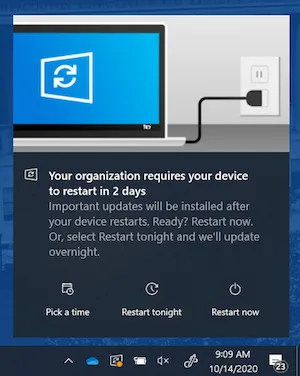
After Windows OS updates are released, you will see a notification window pop-up in the lower-right corner of your computer screen. You may select from three options if you have not already surpassed the installation deadline.
CUIT always recommends restarting your computer ASAP ("Restart now") so you can benefit from feature enhancements and the latest security protections from the Windows updates. However if you are in the middle of an urgent project or meeting, you also have the opportunity to schedule your restart/update for a more convenient time ("Restart tonight" or "Pick a time"). Note that all options may not be available if you have already surpassed the update implementation deadline.
Select a restart/installation option
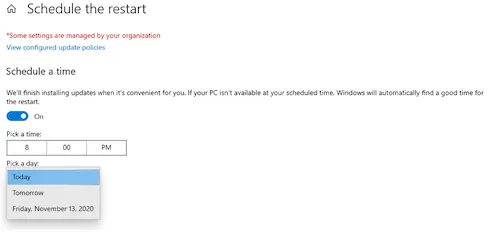
Select a specific time to schedule your computer to restart and update; you will only have the option to select a date between the current date and the installation deadline date. If you do not see this option, it means that you have already surpassed the installation deadline.
Automatically schedule your computer to restart/update during your maintenance window if the computer is not in use. Your maintenance window is automatically determined based on your typical computer usage activity. You can also disable this feature and manually set your active hours.
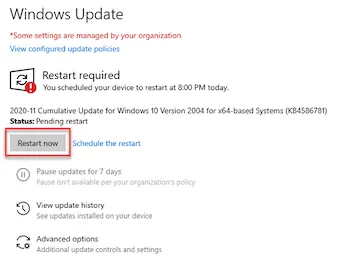
Immediately restart your computer to complete the Windows update installation.
By default, Windows 10 uses AI to automatically determine the best maintenance window for your computer based on your typical activity. If you prefer, you can disable this feature and manually set your active hours.
- Navigate to the Start menu and select Settings.
- Select Update & Security.
- Under the Windows Update section in the lefthand navigation panel, select Change active hours.
- Toggle the Automatically adjust active hours for this device based on activity option to off.
- Select Change next to Current active hours.
- In the Active Hours window, select the best start and end time that represents your daily computer activity. Windows updates will now be installed and your computer will be rebooted outside of these hours. If you happen to be using your computer during "off hours", the system will check with you before restarting and installing the update.